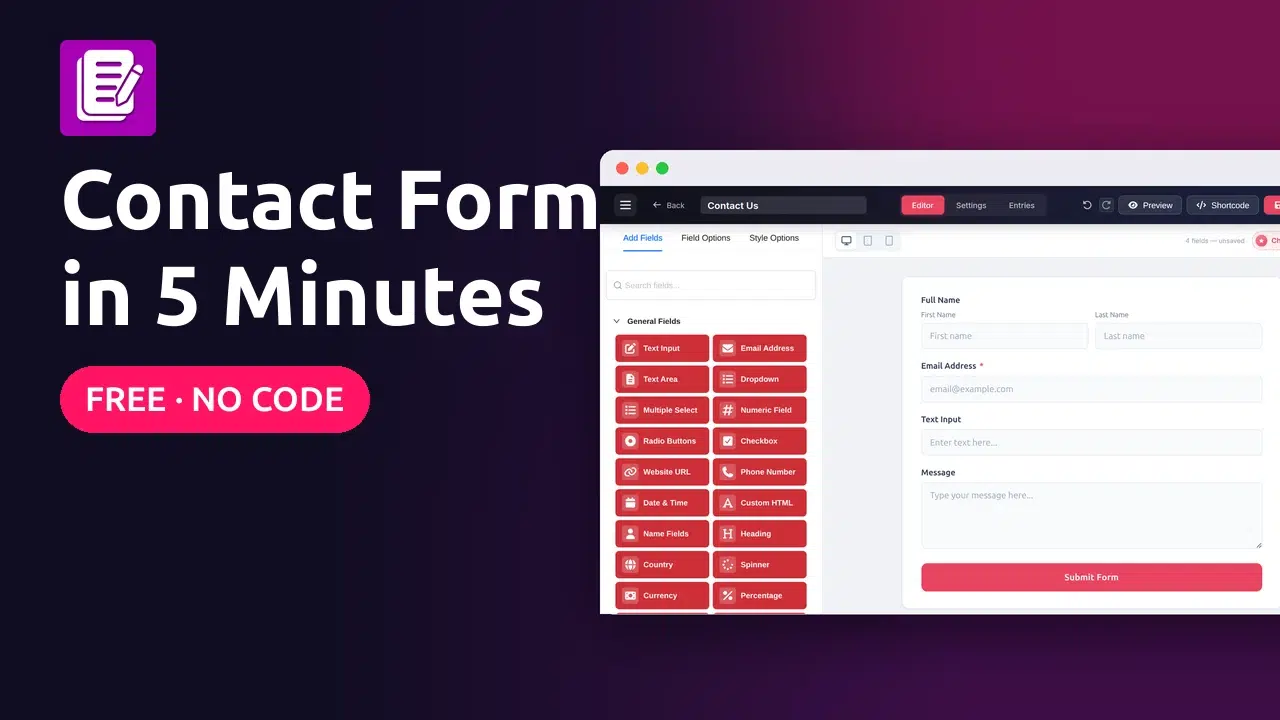
Build a contact form with name, email, subject and message fields, get an email for every message, and add it to any page, using the free FormGlut plugin.
The short version
- Install and activate the free FormGlut plugin.
- Go to FormGlut → Add New Form → New Blank Form and name it Contact Us.
- Click Name Fields, Email Address, Text Input and Text Area to add them.
- Rename Text Input to Subject, then click Save Form.
- Check the email address under Settings → Notifications.
- Click Shortcode, paste it into a Shortcode block on a Contact page, and publish.
- Send a test message and read it under FormGlut → Entries.
A contact form is the easiest way for visitors to reach you. It keeps your email address private, it can block spam, and every message is saved in your dashboard, so nothing gets lost in an inbox.
WordPress doesn’t include a contact form, so you need a plugin. In this tutorial we use FormGlut, a free drag-and-drop form builder. You’ll build a working contact form with name, email, subject and message fields, get an email for every message, and put the form on a page. No code needed.
What you need
- A WordPress site where you can install plugins (an administrator account)
- The free FormGlut plugin (we used version 1.7.1 on WordPress 7.1)
- About 5 minutes
Install and activate FormGlut
In your WordPress dashboard, go to Plugins → Add New Plugin. Search for FormGlut, click Install Now, then Activate.
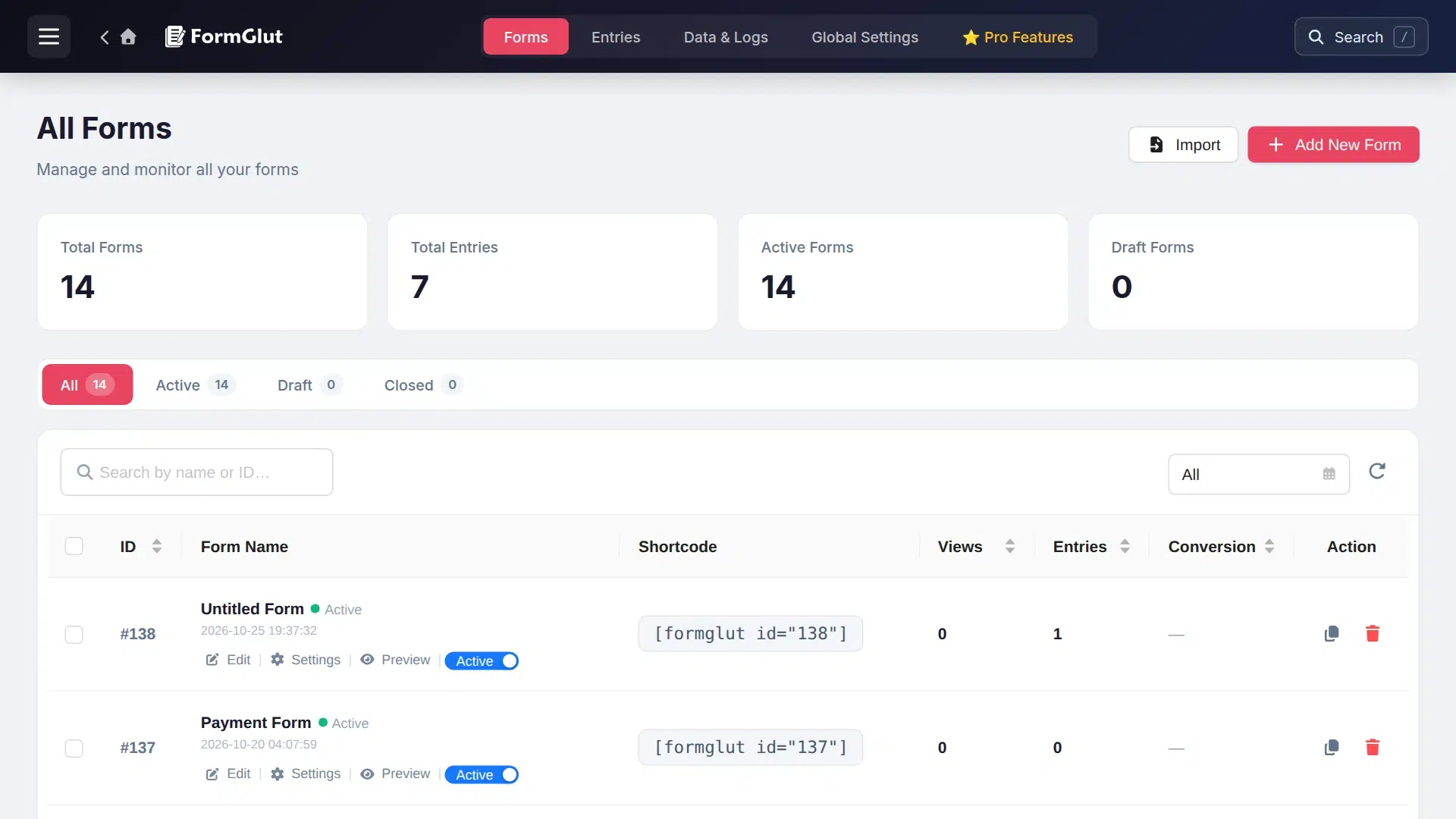
A new FormGlut item appears in the dashboard menu. Click it to open the All Forms screen. It lists every form with its views, entries and shortcode. On a new site the list is empty. (Need help? See Installation and Setup.)
Create a new blank form
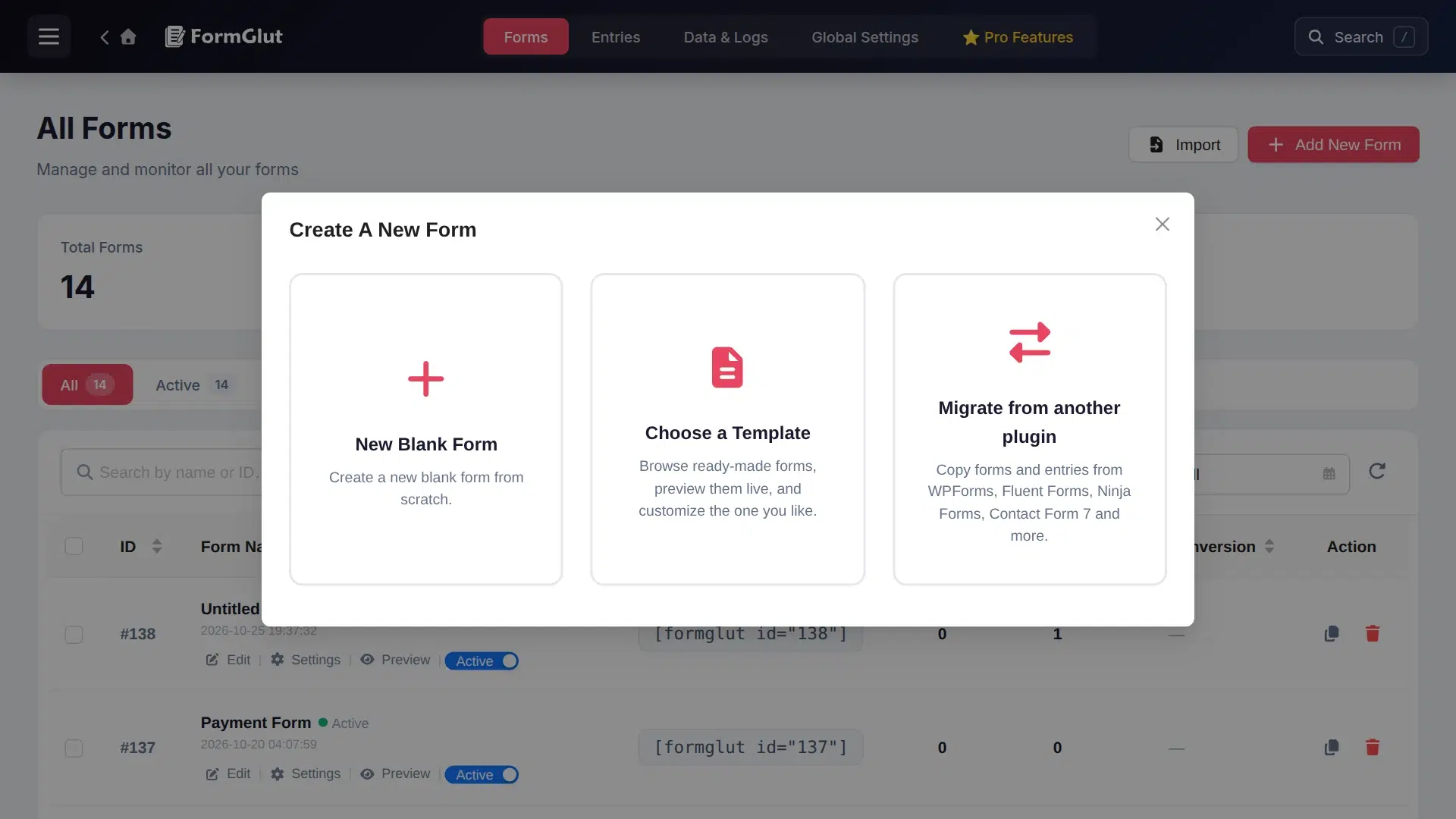
Click Add New Form. FormGlut asks how you want to start:
- New Blank Form: start from an empty form (what we’ll do here)
- Choose a Template: pick a ready-made form and change it (see Form Templates)
- Migrate from another plugin: copy forms and entries from WPForms, Fluent Forms, Ninja Forms or Contact Form 7 (see Migrate from Other Form Plugins)
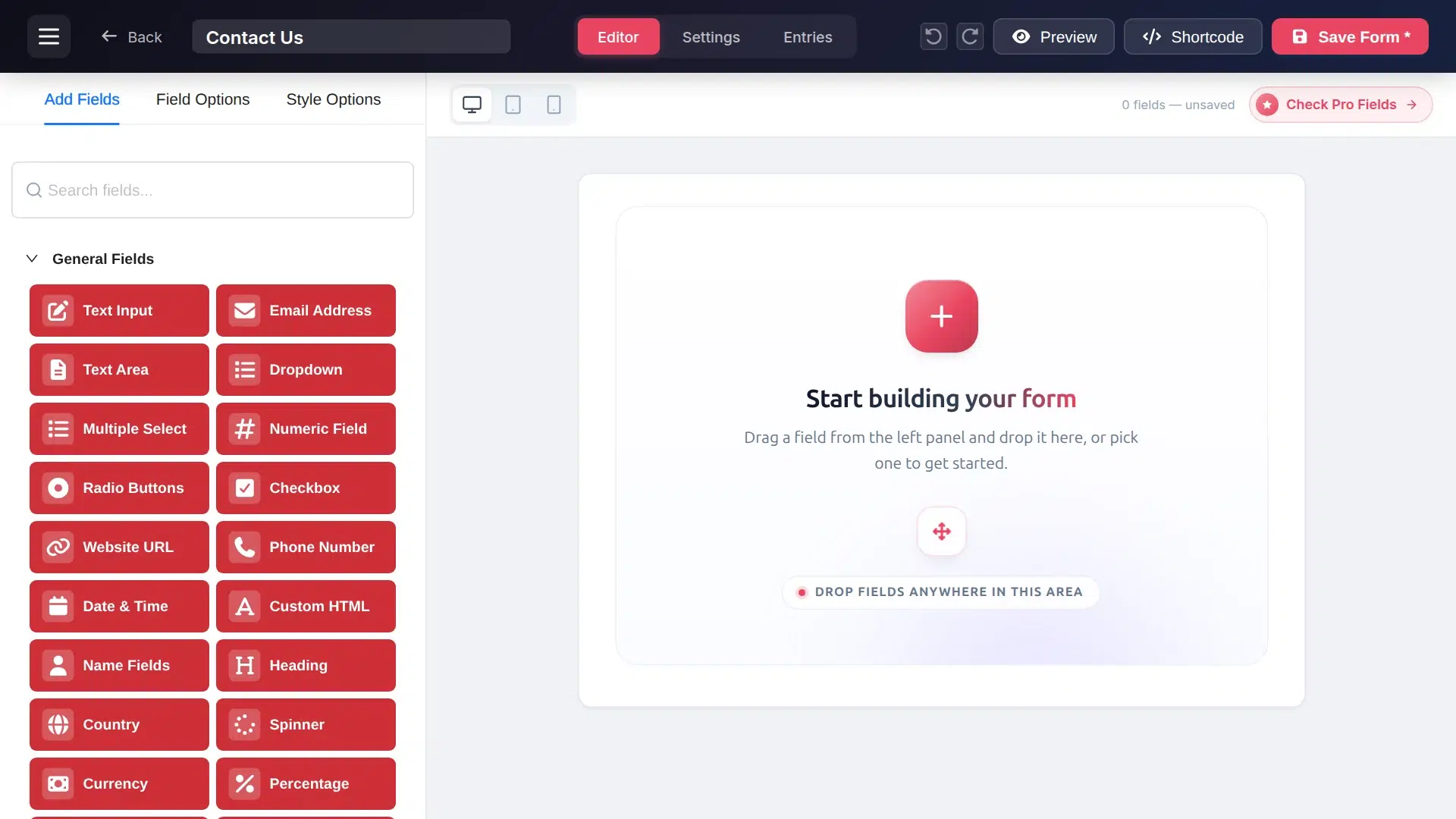
The form editor opens. Click the title at the top and give the form a name, such as Contact Us. Only you see this name; it helps you find the form later.
Add the contact form fields
A good contact form is short. Every extra field means fewer people finish it. For most sites these four are enough:
| Field to click | What it becomes |
|---|---|
| Name Fields | Full name, with first and last name boxes |
| Email Address | The visitor’s email, checked so it’s a real address. Required by default |
| Text Input | The subject line (we’ll rename it in the next step) |
| Text Area | The message box, labelled Message |
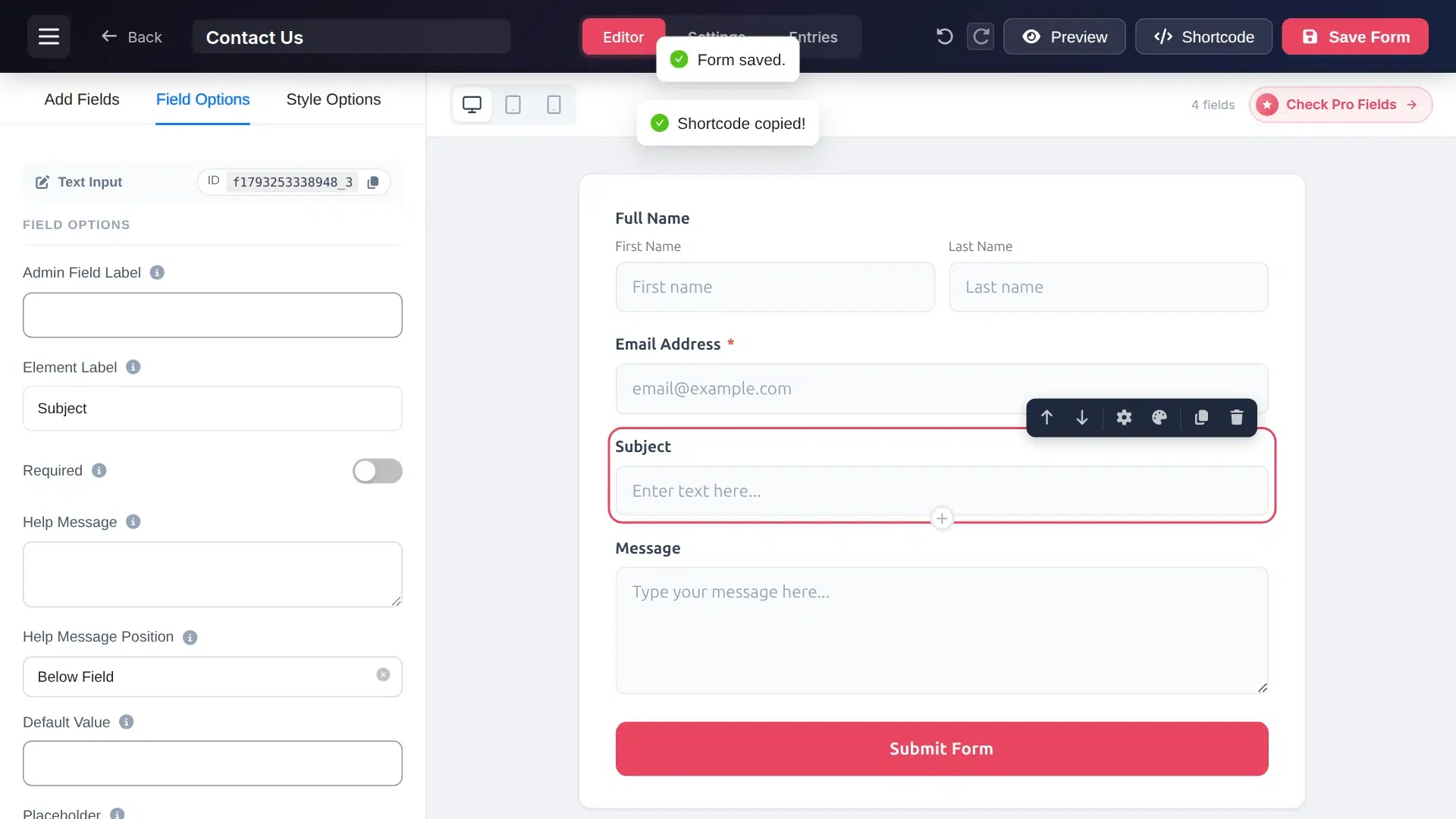
Click each field in the left panel and it’s added to the bottom of the form. You can also drag a field to any spot. To change the order later, hover over a field and use the up and down arrows.
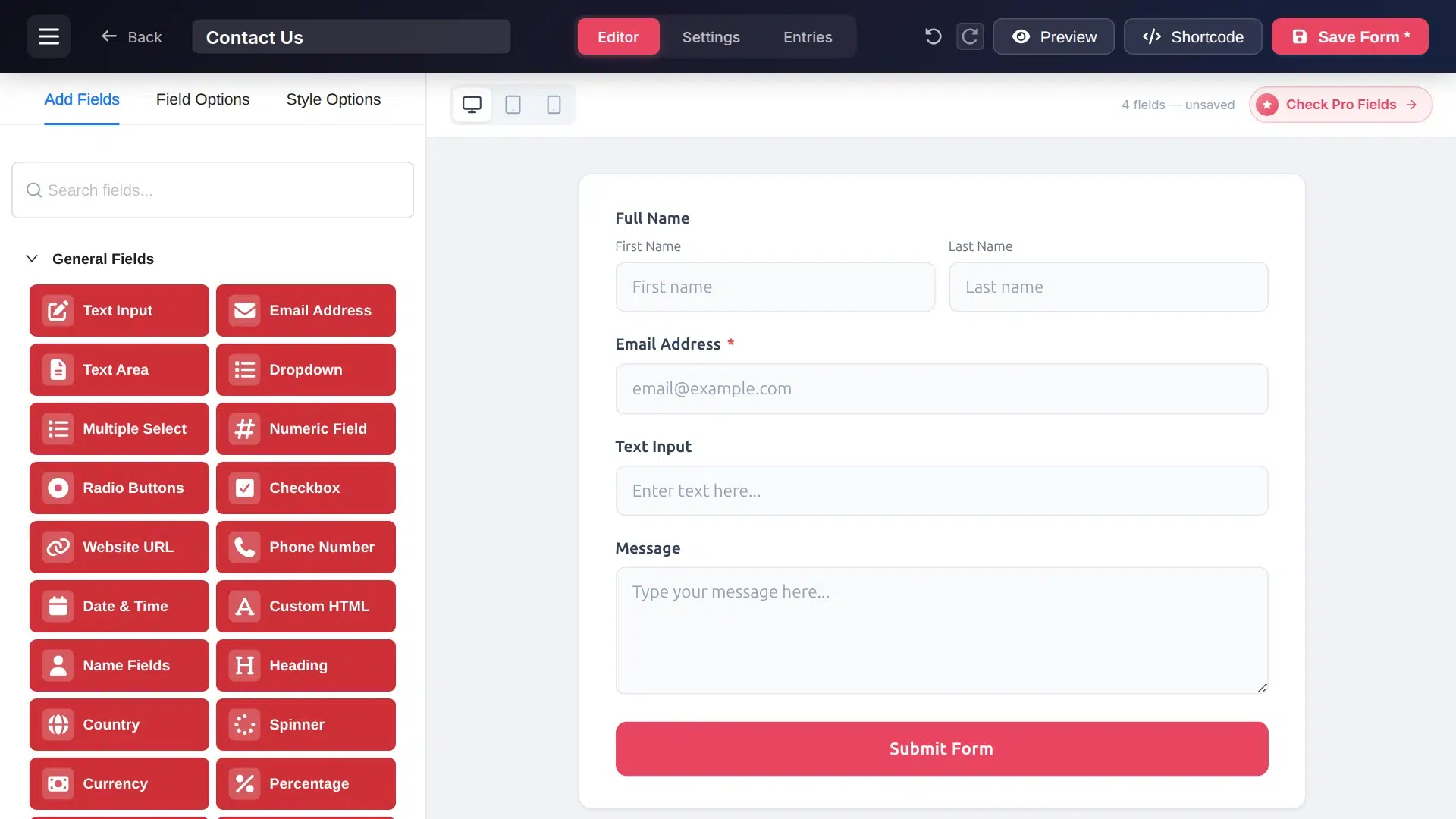
Tip: Want a phone number too? Click Phone Number. It includes a country code picker. Only ask for it if you will actually call people back.
Change labels and required fields
Click any field on the form to edit it. The left panel switches to Field Options.
Click the Text Input field and change Element Label to Subject. The form updates as you type. In the same panel you can:
- turn on Required so the form can’t be sent without it
- change the Placeholder, the grey hint text inside the box
- add a Help Message under the field
- set a custom error message
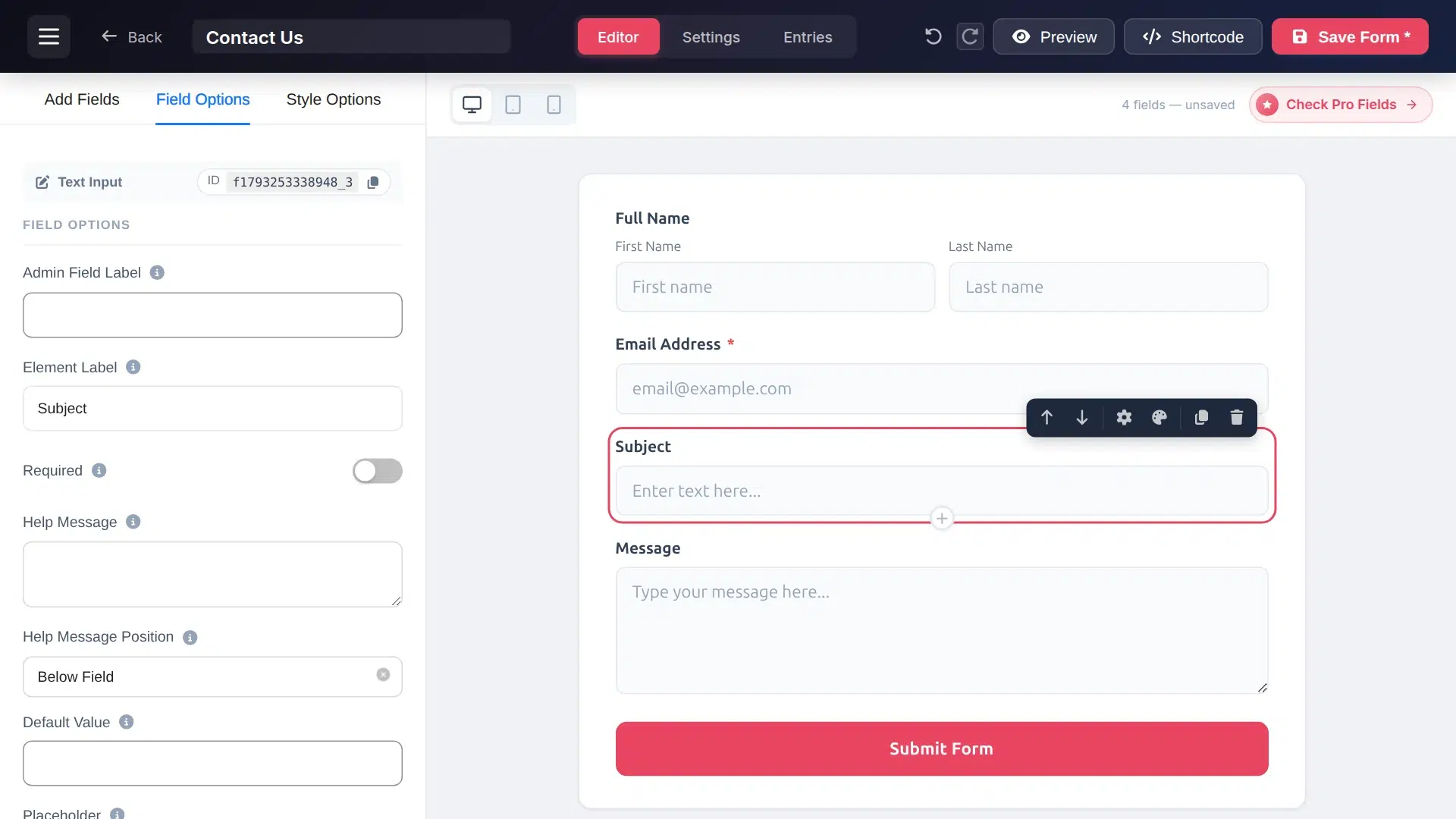
We recommend making Message required as well, so nobody sends an empty form. For every option, see Field Options.
Save the form
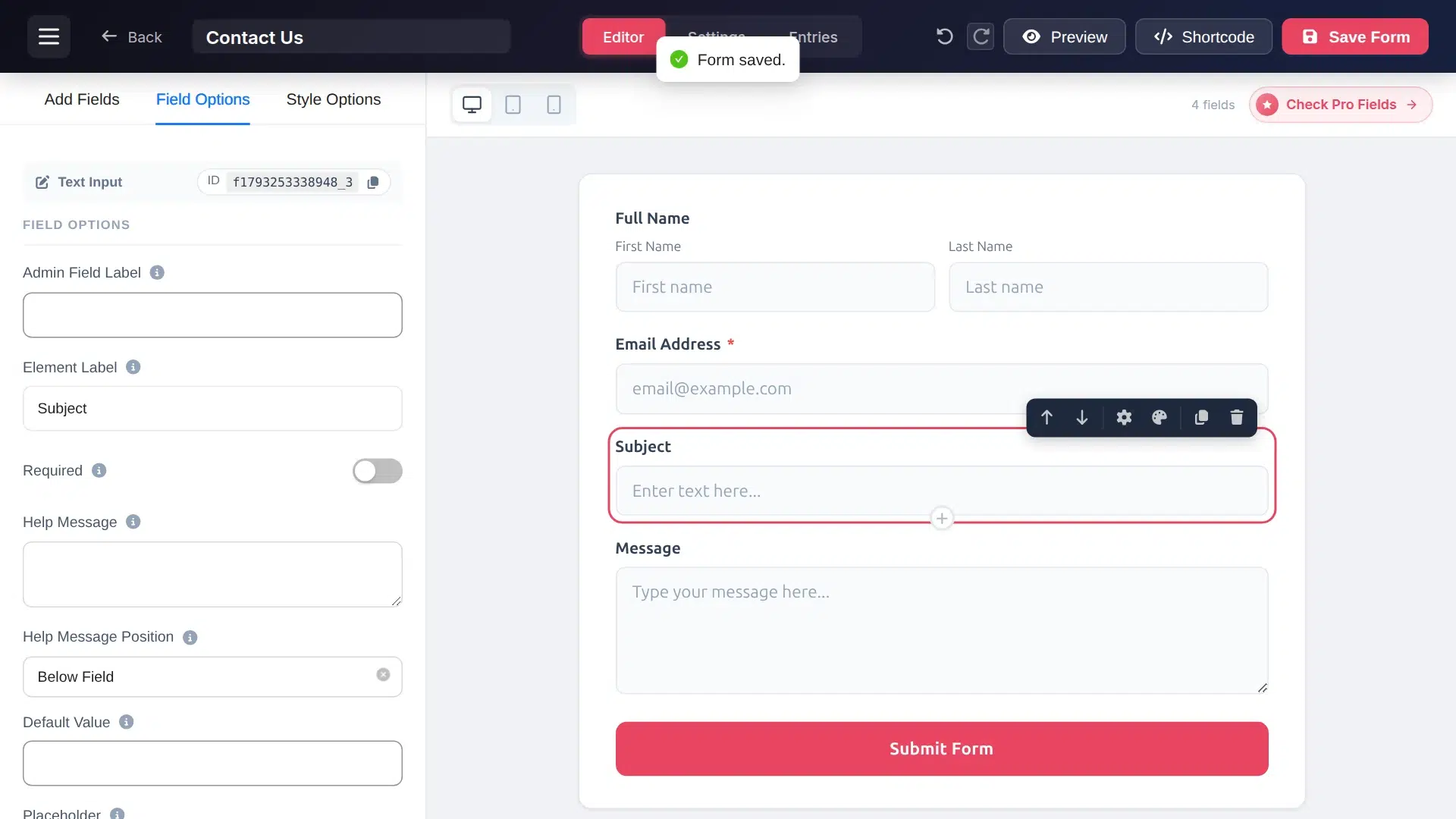
Click Save Form in the top right. A Form saved message appears. Click Preview at any time to see the form the way visitors will, on desktop, tablet or mobile.
Get an email for every message
Click the Settings tab at the top of the editor, then Notifications in the left menu.
Send admin notification is already on. By default the email goes to your site’s admin email (the {admin_email} tag). To send messages somewhere else, type the address in Send to. Separate several addresses with commas, or use the CC and BCC boxes.
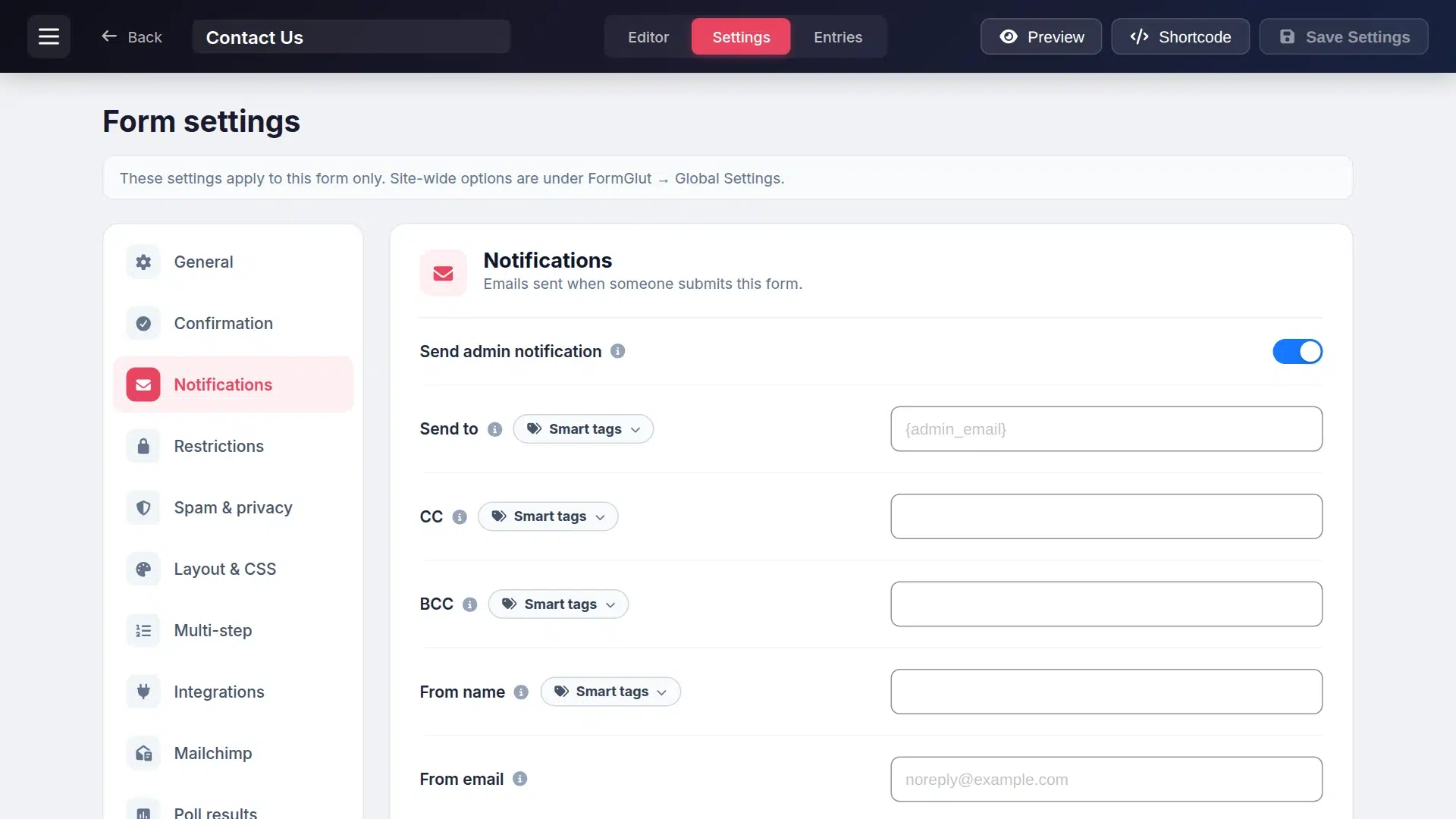
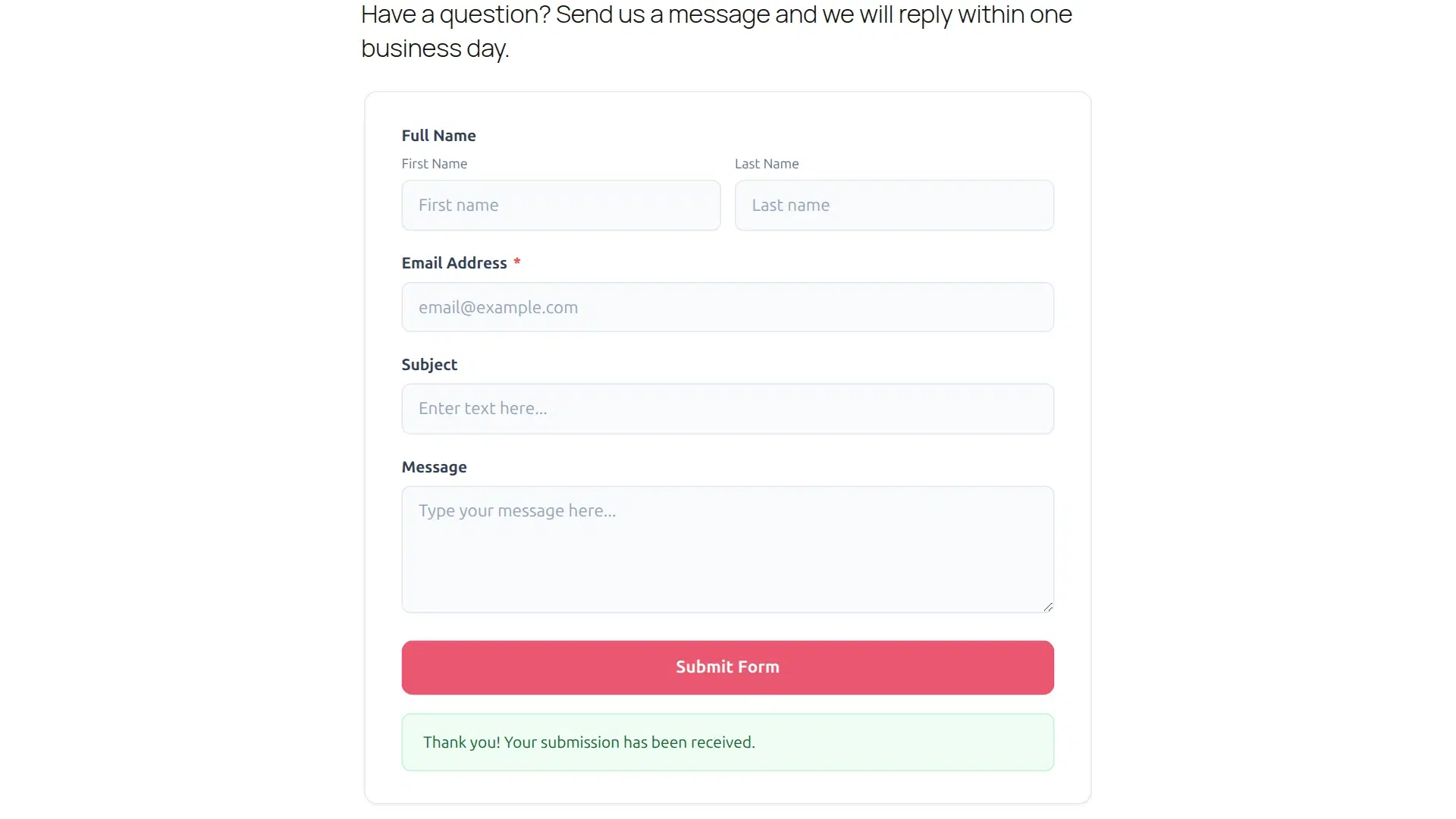
Click Save Settings when you’re done. While you’re here, open Confirmation to change the thank-you message visitors see after they submit, or send them to a thank-you page instead.
Emails not arriving? That’s usually your host, not the form. Many hosts send WordPress email in a way spam filters distrust. Install an SMTP plugin and connect it to your email provider. Even if an email goes missing, FormGlut still saves the message under Entries. More in Email Notifications.
Add the form to a page
Go back to the Editor tab and click Shortcode. The form’s shortcode, for example , is copied to your clipboard. The number is your form’s ID.
Now create the page:
- Go to Pages → Add New Page and call it Contact Us.
- Add a sentence that tells people what to expect, for example how fast you reply.
- Add a Shortcode block and paste the shortcode. You can also add the FormGlut block and pick the form from a list.
- Click Publish.
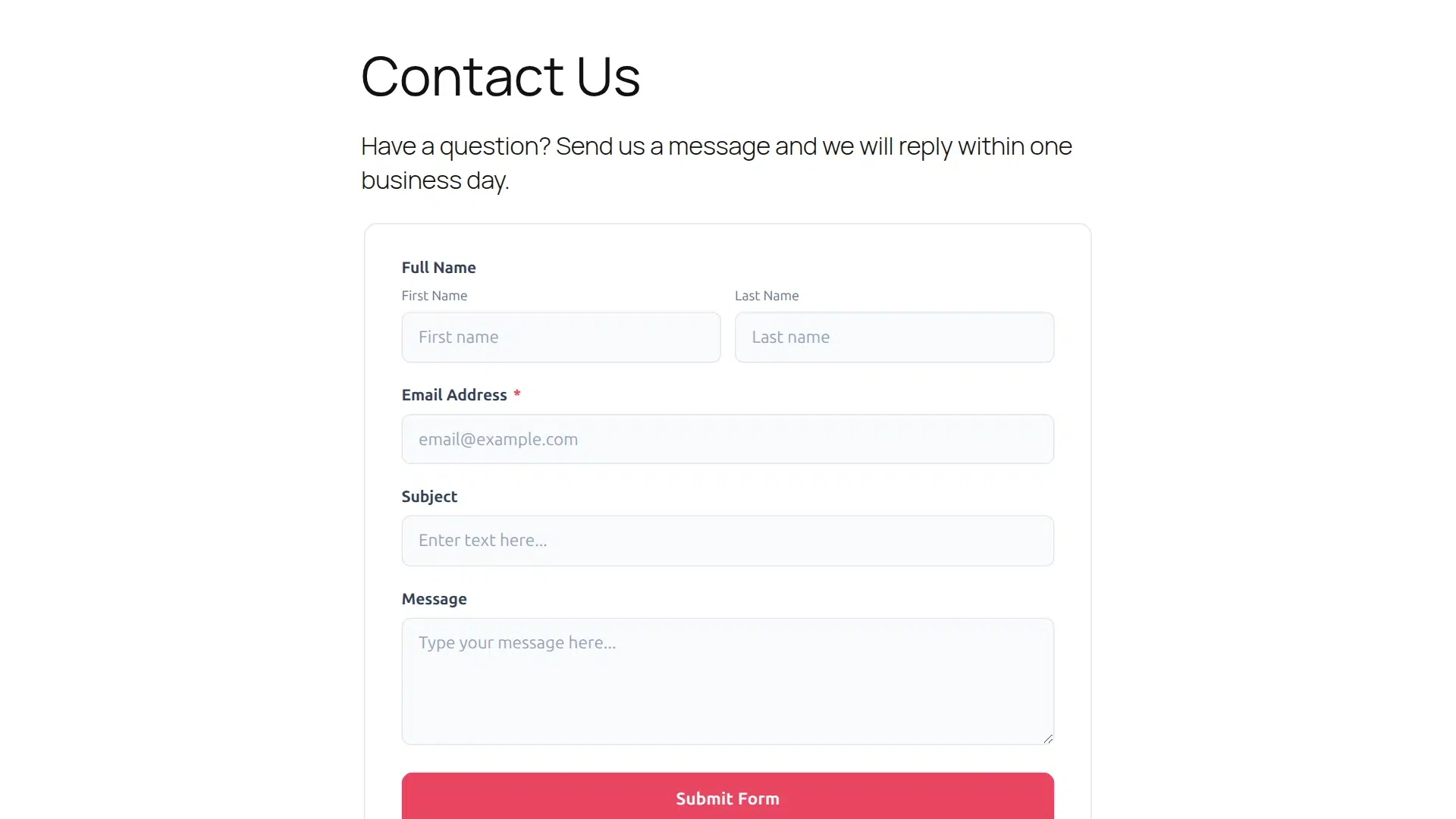
The form also works in classic widgets, page builders and the site editor. See Add a Form to Your Site. Finally, add the page to your menu under Appearance → Menus (or the Navigation block) so people can find it.
Test the form
Never skip this step. Open the page in a private browser window, so you see it as a visitor, fill in every field and click Submit Form.
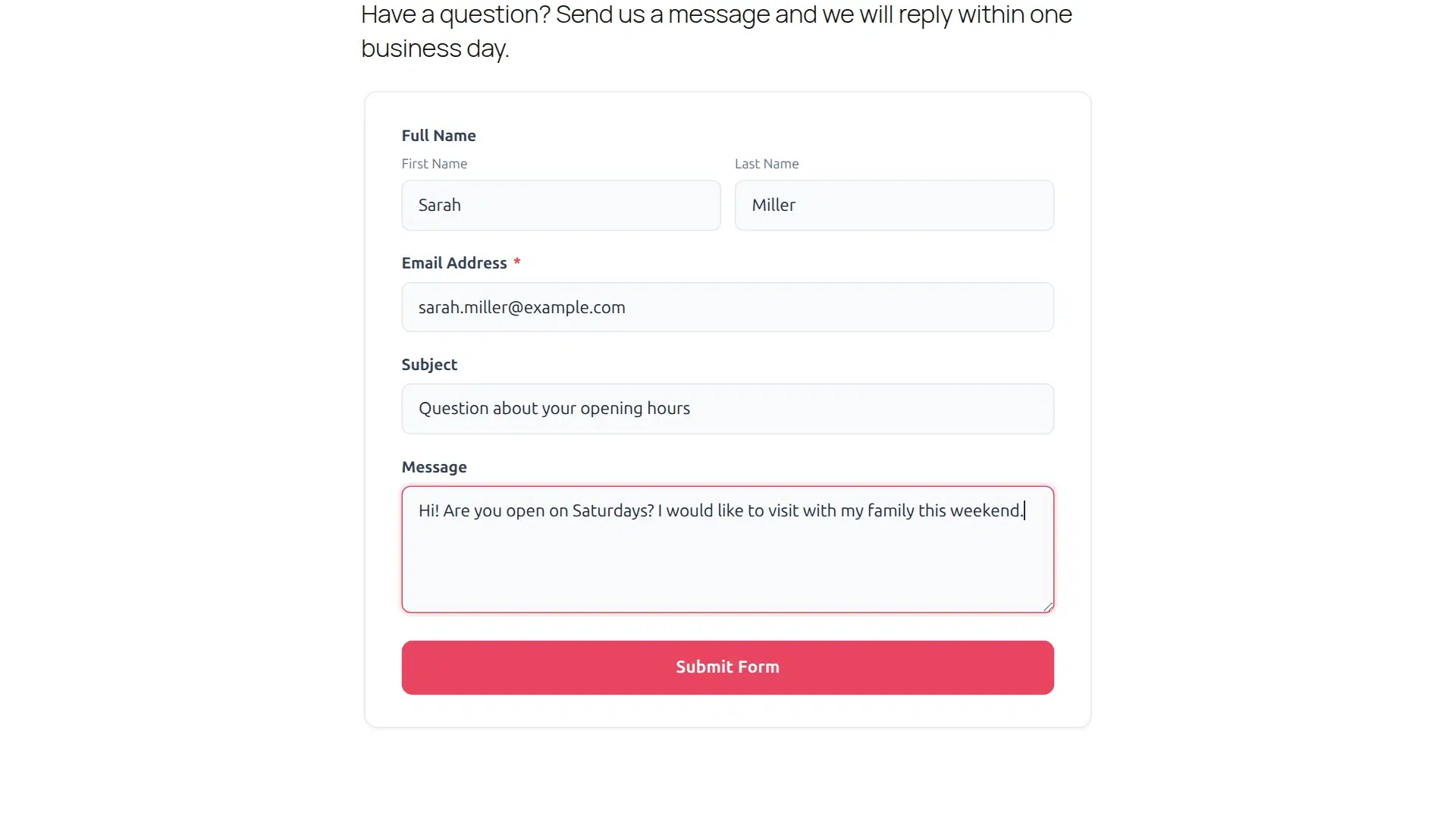
The visitor sees the thank-you message straight away, and you should get the notification email within a minute.
Read and manage your messages
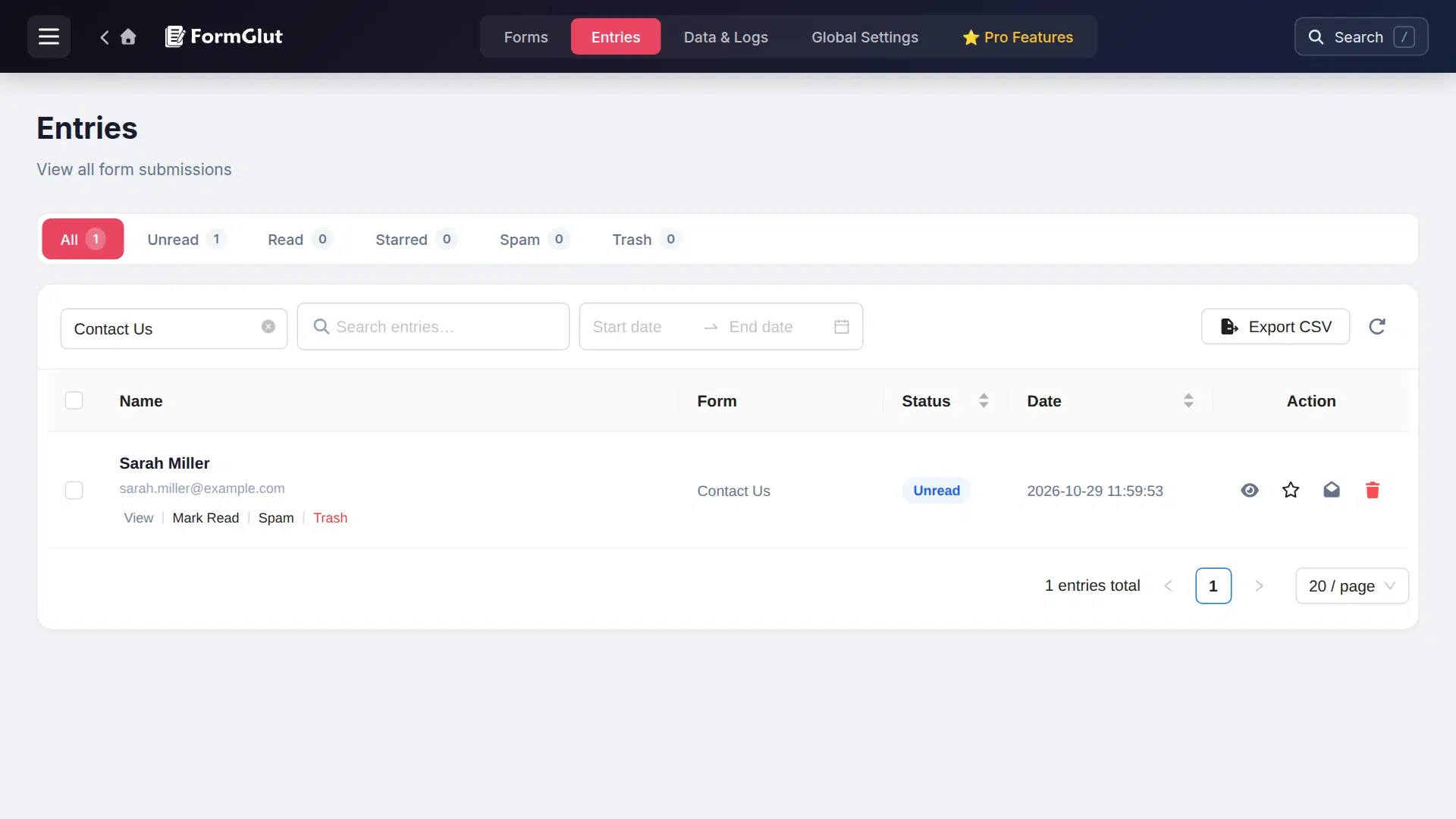
Every message is saved in FormGlut → Entries. Filter by form, search, mark messages read or starred, send spam to the spam folder, or export everything to CSV.
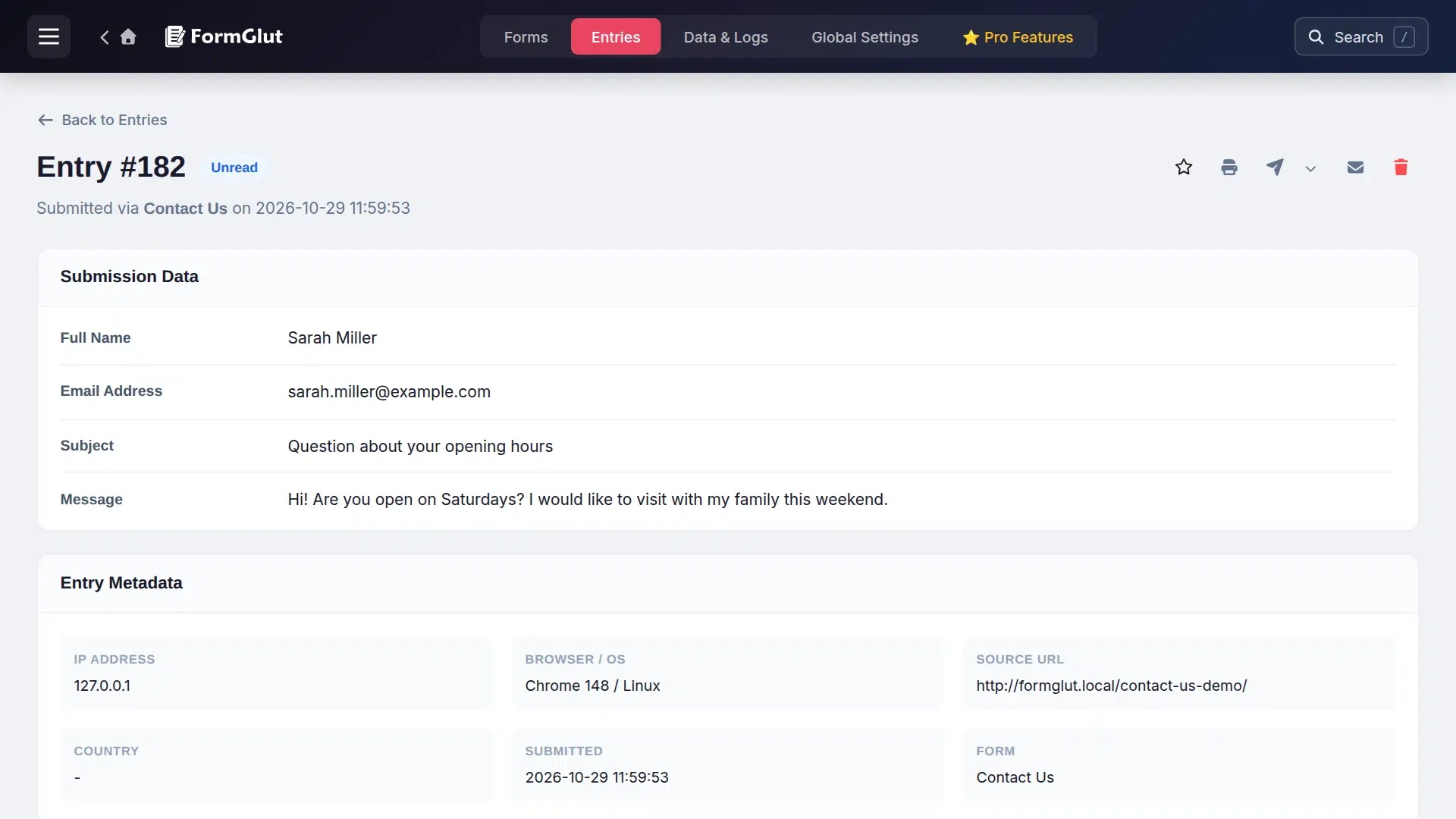
Click an entry to read the full message. Below the message you’ll see when it was sent, which page it came from and the visitor’s browser, which helps you spot spam. See Entries and Viewing a Single Entry.
Keep spam out
FormGlut adds a hidden honeypot field to every form by default. People never see it, but most spam bots fill it in and get blocked. If spam still gets through, open Settings → Spam & privacy on the form and add more protection:
- reCAPTCHA, hCaptcha or Cloudflare Turnstile (set up the keys once under FormGlut → Global Settings)
- a simple math question, with no outside service
- Akismet and StopForumSpam checks
- a keyword blocklist, a minimum time to fill in the form, and a rate limit
Start with the honeypot and add one more layer only when you need it. Each one adds a little friction for real visitors. Details in Spam Protection and Privacy.
Make your contact form work better
- Say how fast you reply. One line above the form (“We reply within one business day”) makes people more likely to send it.
- Keep it short. Name, email and message are often enough. Add a subject or phone field only if you use it.
- Write a useful thank-you message. Tell people what happens next, or link to your FAQ or a popular article.
- Add a consent checkbox if you’re in the EU or UK and plan to email people about anything other than their question.
- Need more? FormGlut’s free version also includes conditional logic, multi-step forms, file uploads and calculations, so the same form can grow into a quote or booking form later.
If something doesn’t work
| Problem | What to do |
|---|---|
The page shows | FormGlut is not active. Go to Plugins and activate it. Also check the quotes in the shortcode are straight quotes, not curly ones. |
| The form doesn’t appear | Check the ID in the shortcode matches the form in All Forms, and that the form’s status is Active. |
| No notification emails | Check Send to and your spam folder, then set up SMTP. Messages are still saved under Entries. |
| Lots of spam | Add Turnstile or hCaptcha under Spam & privacy, and a keyword blocklist. |
| Anything else | See the FormGlut FAQ or ask in the support forum. |
Frequently asked questions
Can I create a contact form in WordPress without a plugin?
WordPress has no built-in contact form. Without a plugin you can only add an email link, which shows your address to spammers and saves nothing. A free form plugin such as FormGlut gives you a real form, spam protection and a saved copy of every message.
Is FormGlut really free?
Yes. The contact form in this tutorial, the email notifications, the saved entries and the spam protection are all in the free plugin on WordPress.org. FormGlut Pro adds extra fields, payment gateways and integrations, but you don’t need it for a contact form.
Why am I not getting emails from my contact form?
Most hosts send WordPress email in a way that spam filters distrust. Install an SMTP plugin and connect it to your email provider, then send a test. FormGlut also saves every message under Entries, so nothing is lost while you fix email.
How do I stop spam on my WordPress contact form?
FormGlut turns on a hidden honeypot field by default, which blocks most bots. Under Settings, Spam & privacy you can also add reCAPTCHA, hCaptcha, Cloudflare Turnstile or a math question, block keywords, and limit how often someone can submit.
Can I send contact form messages to more than one email address?
Yes. In Settings, Notifications, put several addresses in Send to, separated by commas, or use the CC and BCC boxes.
Where do I put the contact form?
Most sites use a Contact page linked from the menu. Because the form is a shortcode or a block, you can also add it to a sidebar, the footer or the end of a post.
Keep going
Build your contact form now
FormGlut is free on WordPress.org: contact forms, multi-step forms, conditional logic, file uploads, Stripe payments and more.
Written by the AppGlut team, the makers of FormGlut. Every step was tested on 29 October 2026 with FormGlut 1.7.1 and WordPress 7.1.