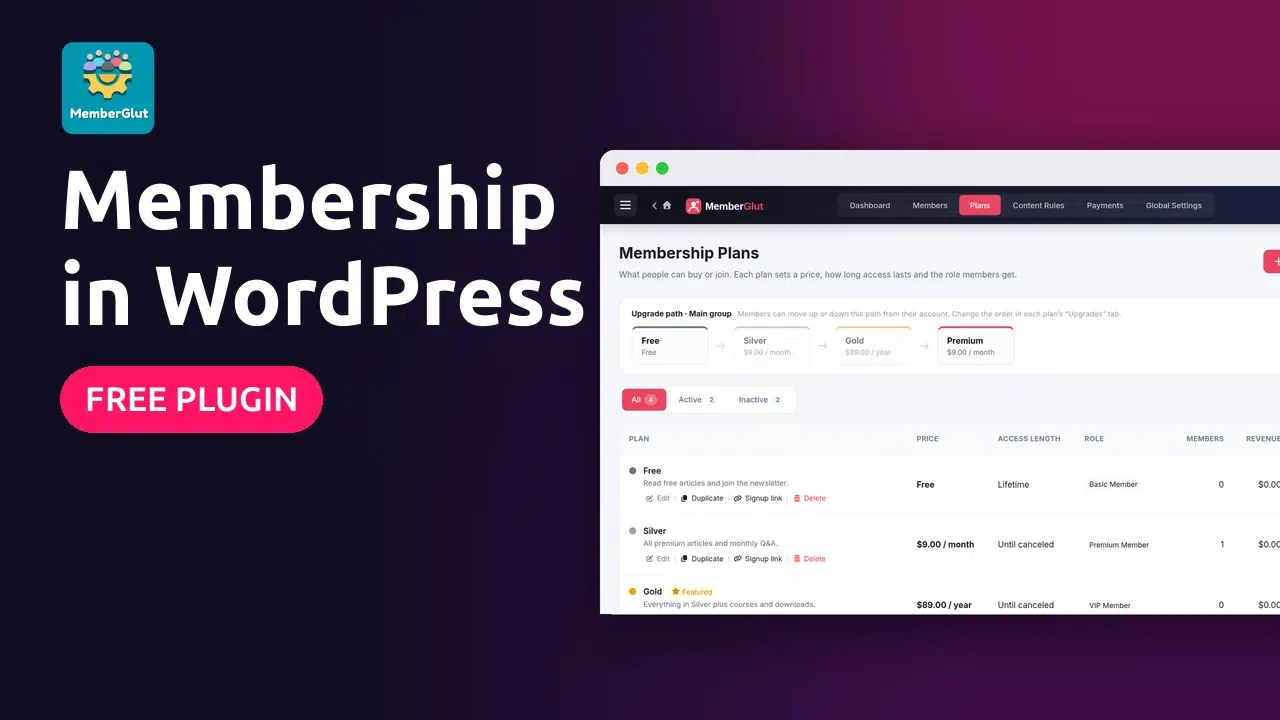
Set up free and paid membership plans, registration and login pages, a pricing table and members-only content, with the free MemberGlut plugin. No code.
The short version
- Install and activate the free MemberGlut plugin.
- On the MemberGlut dashboard, use Get started → Create the membership pages.
- Under Plans → New plan, create a free plan and a paid plan (for example $9 a month).
- Turn on Stripe, PayPal or bank transfer under Global Settings → Payments.
- Under Content Rules → New rule, choose what to protect, which plans can see it and what others see.
- Open your site logged out and check the pricing page, registration and a protected post.
A membership site lets you share some content with everyone and keep the best parts for members. It works for online courses, paid newsletters, communities, coaching, and any business that sells access to knowledge.
You don’t need an expensive platform for it. In this tutorial you’ll build a complete membership site in WordPress with the free MemberGlut plugin: a free plan and a paid monthly plan, registration and login pages, a pricing table, and members-only posts that visitors can’t read.
What you need
- A WordPress site where you can install plugins (an administrator account)
- The free MemberGlut plugin (we used version 2.0.0 on WordPress 7.1)
- For paid plans: a Stripe or PayPal account (or you can take bank transfers)
- About 15 minutes
Plan your membership first
Before you click anything, decide two things. It saves you from rebuilding later.
| Question | Example |
|---|---|
| What do members get? | Premium guides, a monthly live Q&A, downloads |
| Which plans do you offer? | Free (newsletter and free articles) and Premium ($9 a month) |
| What stays public? | Your blog, so Google can find you and visitors can see what they’d get |
Tip: Start with one free plan and one paid plan. You can add a yearly plan or a higher tier later, and MemberGlut lets members move between plans from their account.
Install MemberGlut and open the dashboard
In WordPress, go to Plugins → Add New Plugin, search for MemberGlut, click Install Now and then Activate.
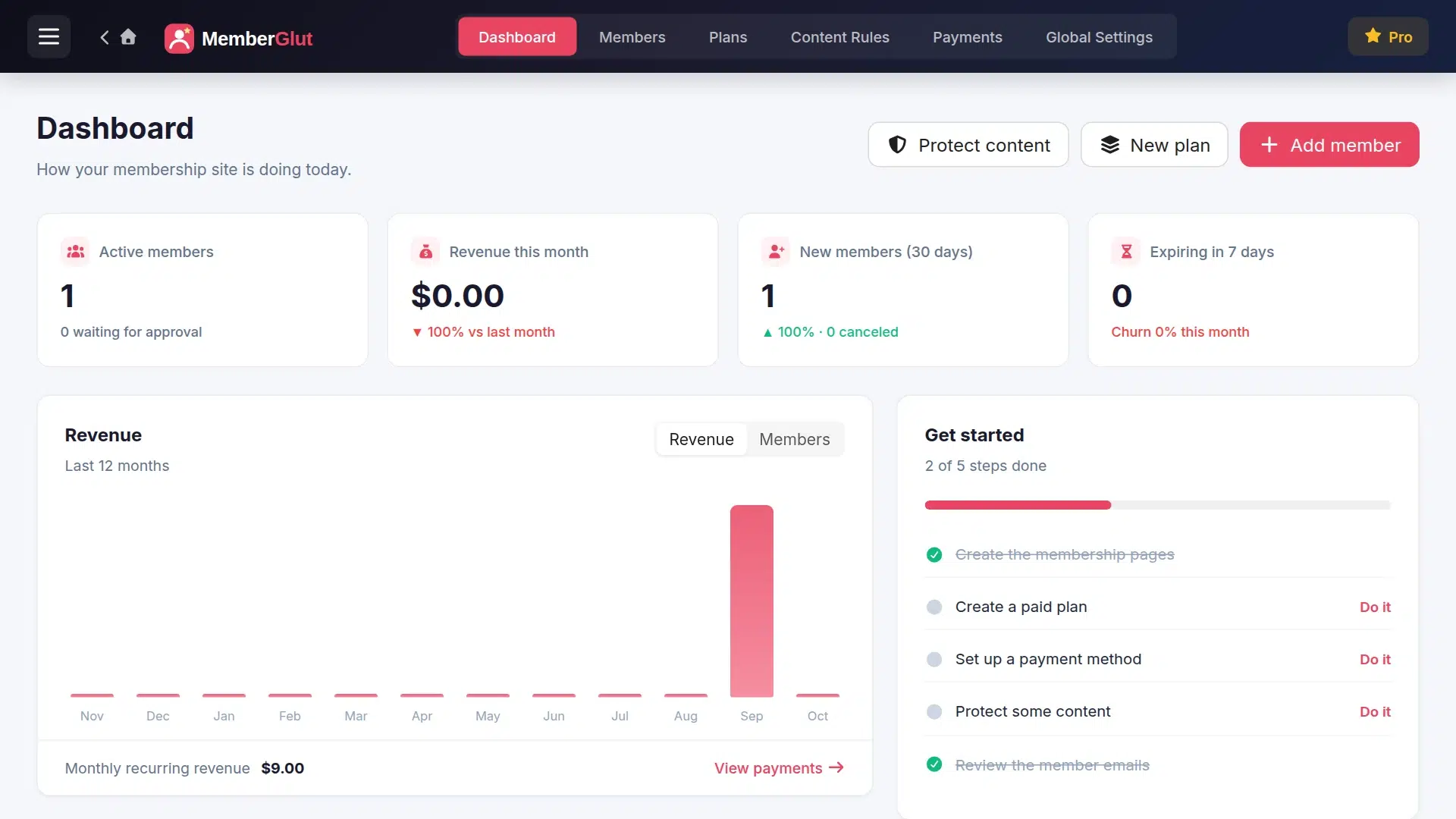
Click MemberGlut in the dashboard menu. The dashboard shows active members, revenue, new sign-ups and members about to expire. On the right, the Get started list walks you through the setup. Each step has a Do it link.
Create the membership pages
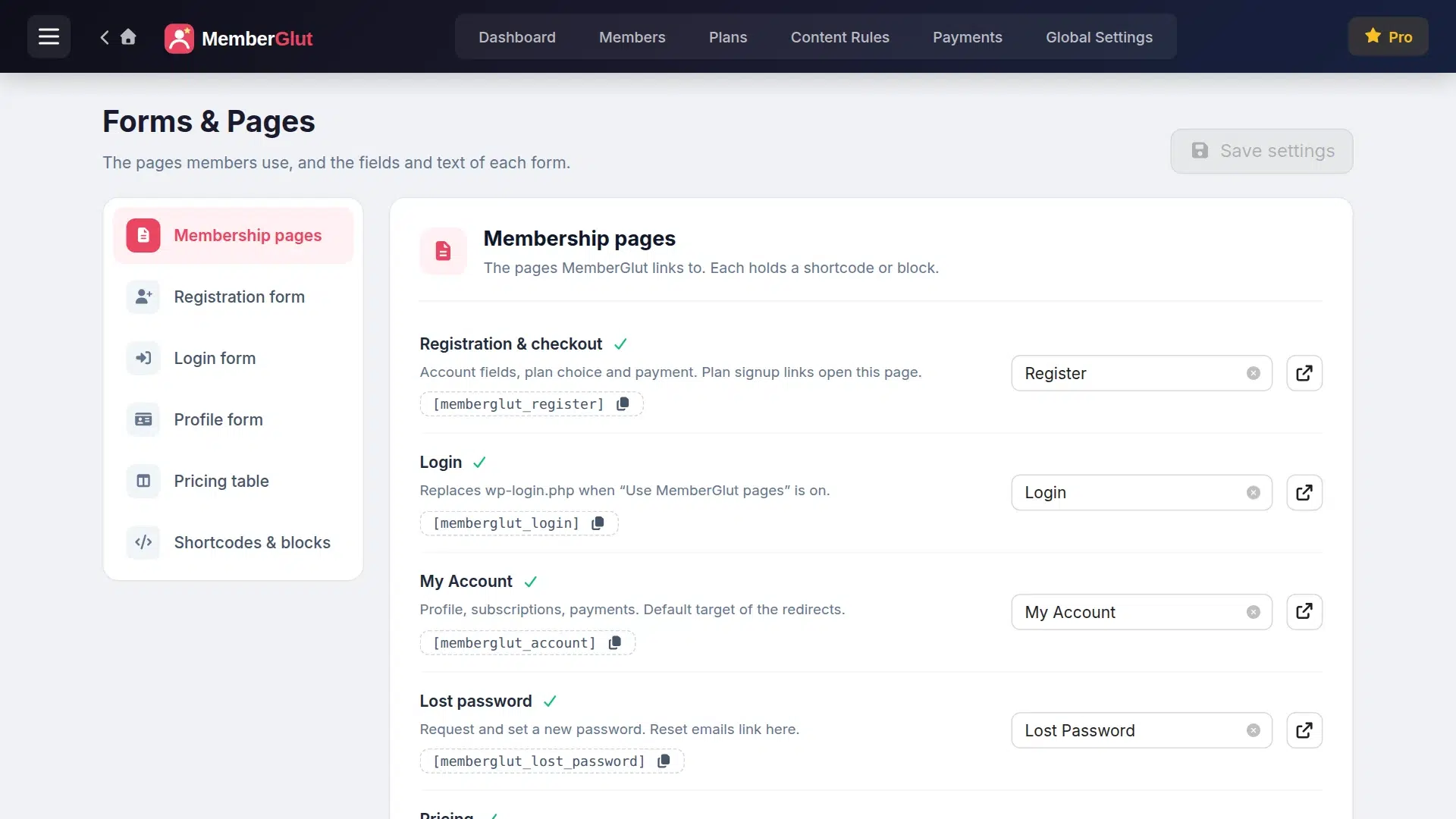
A membership site needs a few pages: registration and checkout, login, the member’s account, lost password and a pricing table. In Get started, click Do it next to Create the membership pages. MemberGlut creates all of them in one click and connects them.
You can check them any time under MemberGlut → Forms & Pages. Each page holds a shortcode, such as [memberglut_register] or [memberglut_account], so you can also move a form to a page you designed yourself.
Create your membership plans
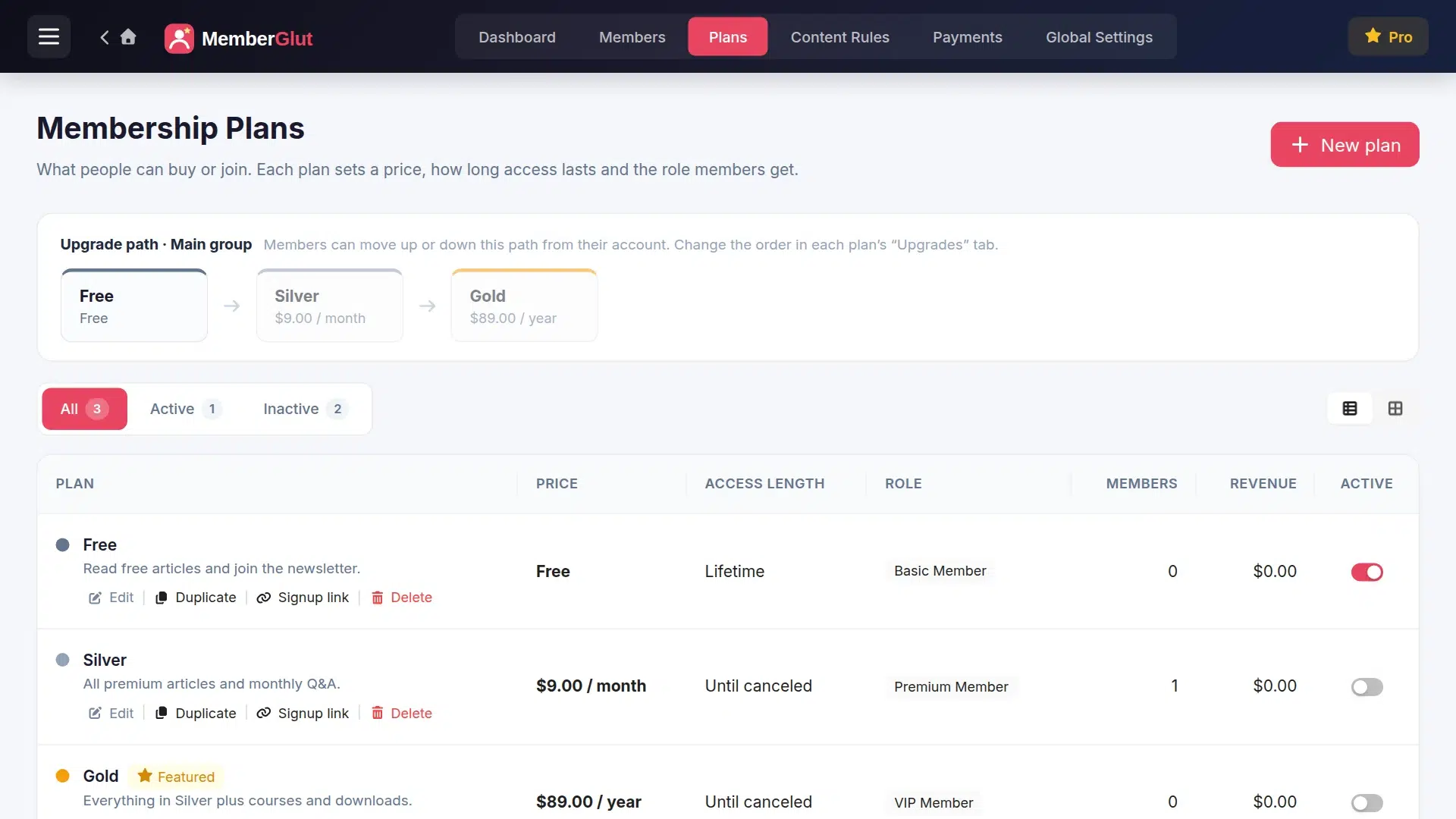
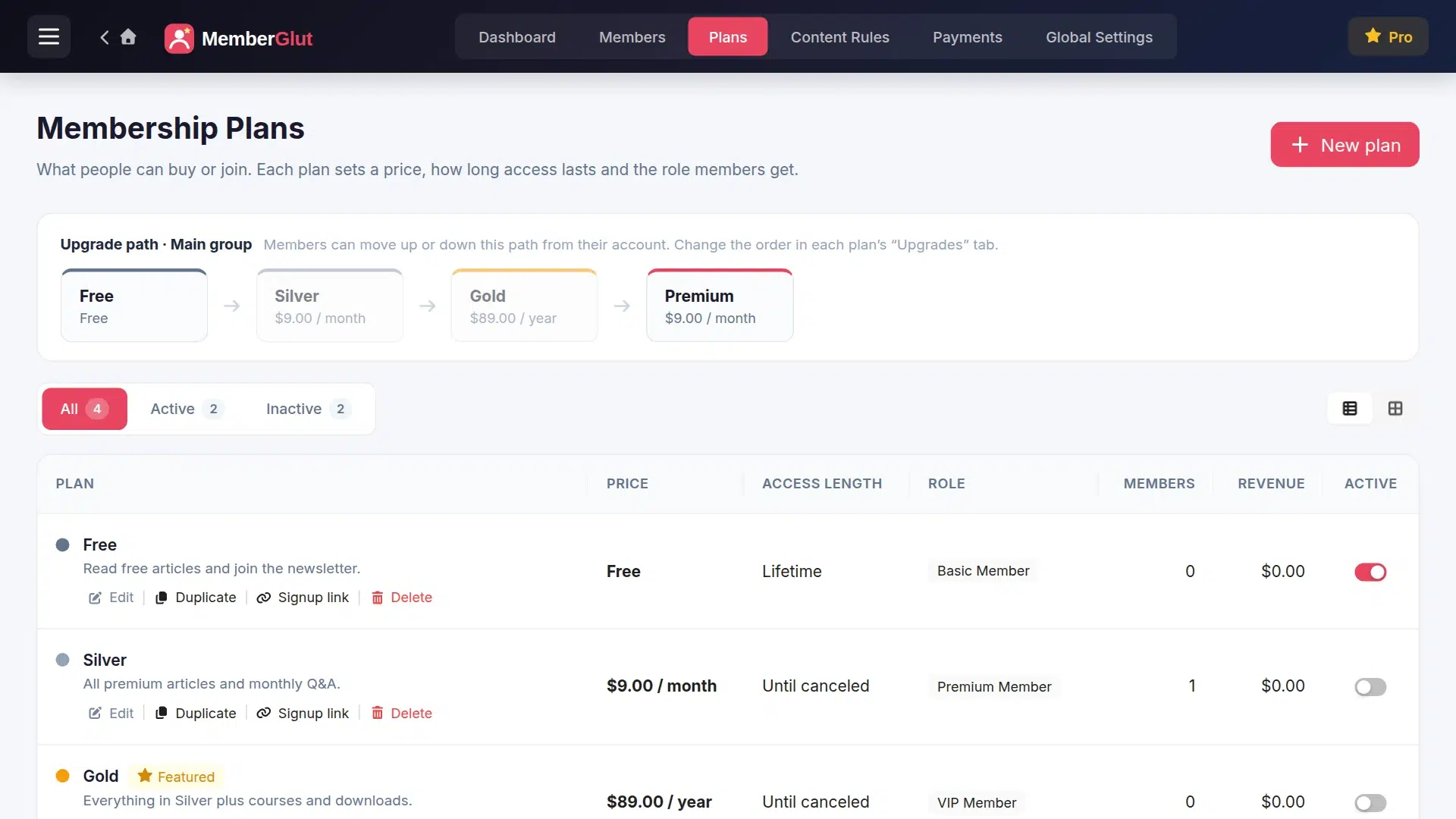
Go to MemberGlut → Plans. A plan sets the price, how long access lasts and the WordPress role members get. The Upgrade path at the top shows the order members can move up or down in.
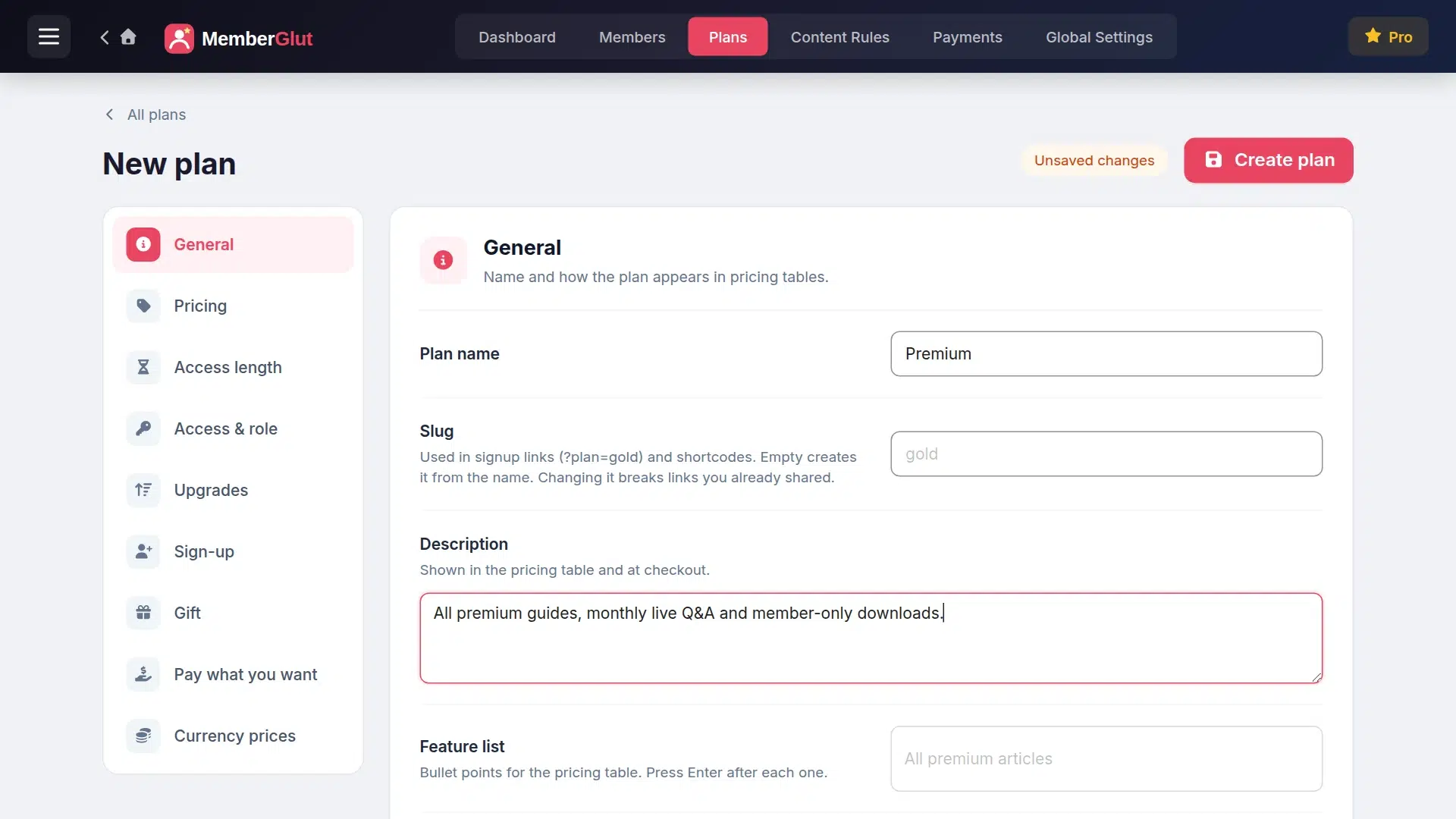
Click New plan. On the General tab, enter the plan name (we used Premium) and a short description. The description appears in the pricing table and at checkout, so write it for your visitors: say what they get.
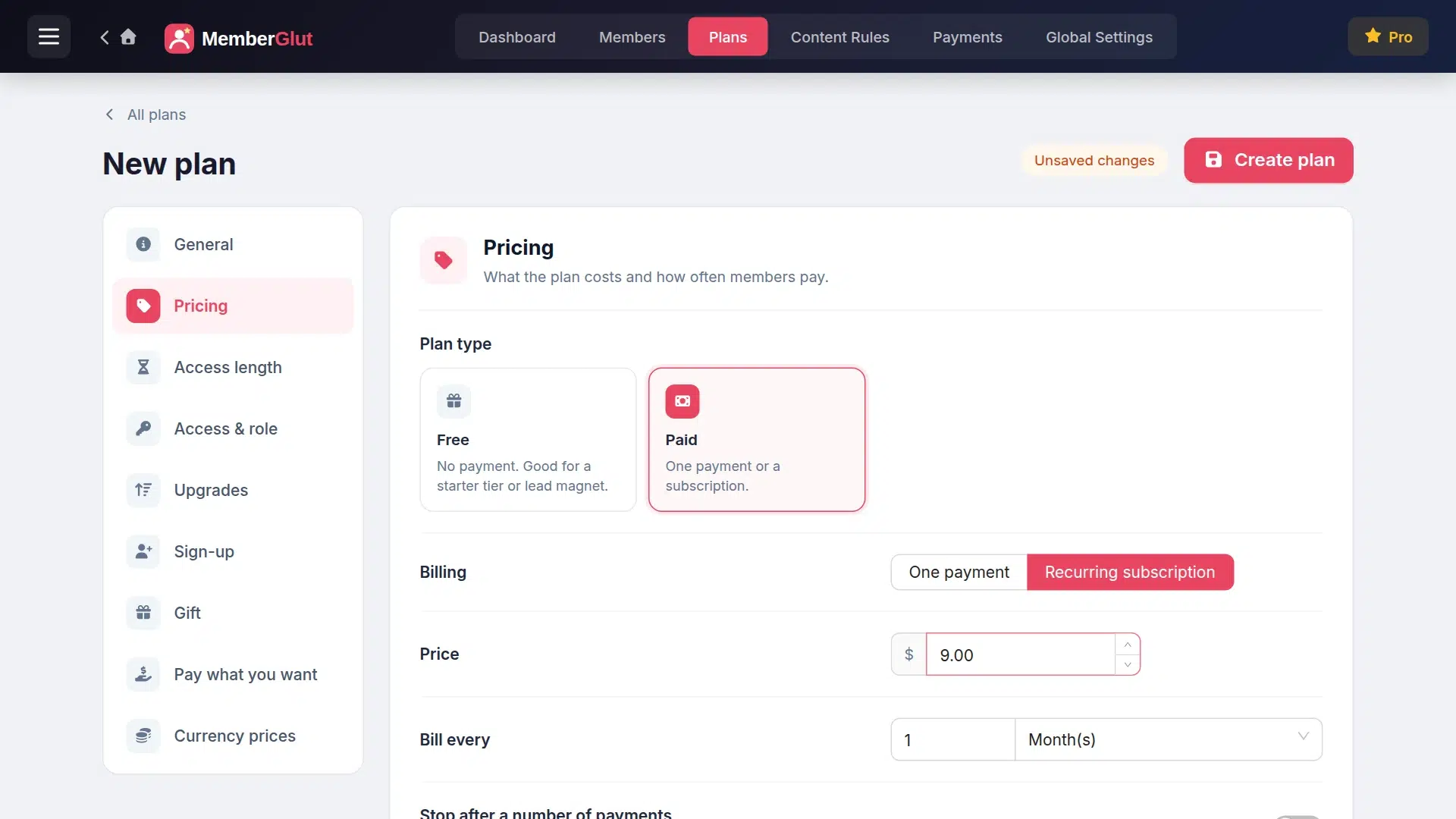
Open the Pricing tab. Choose Paid, then Recurring subscription, enter the Price (9.00) and set Bill every to 1 month. For a one-time price, such as lifetime access, choose One payment instead. For a free plan, choose Free.
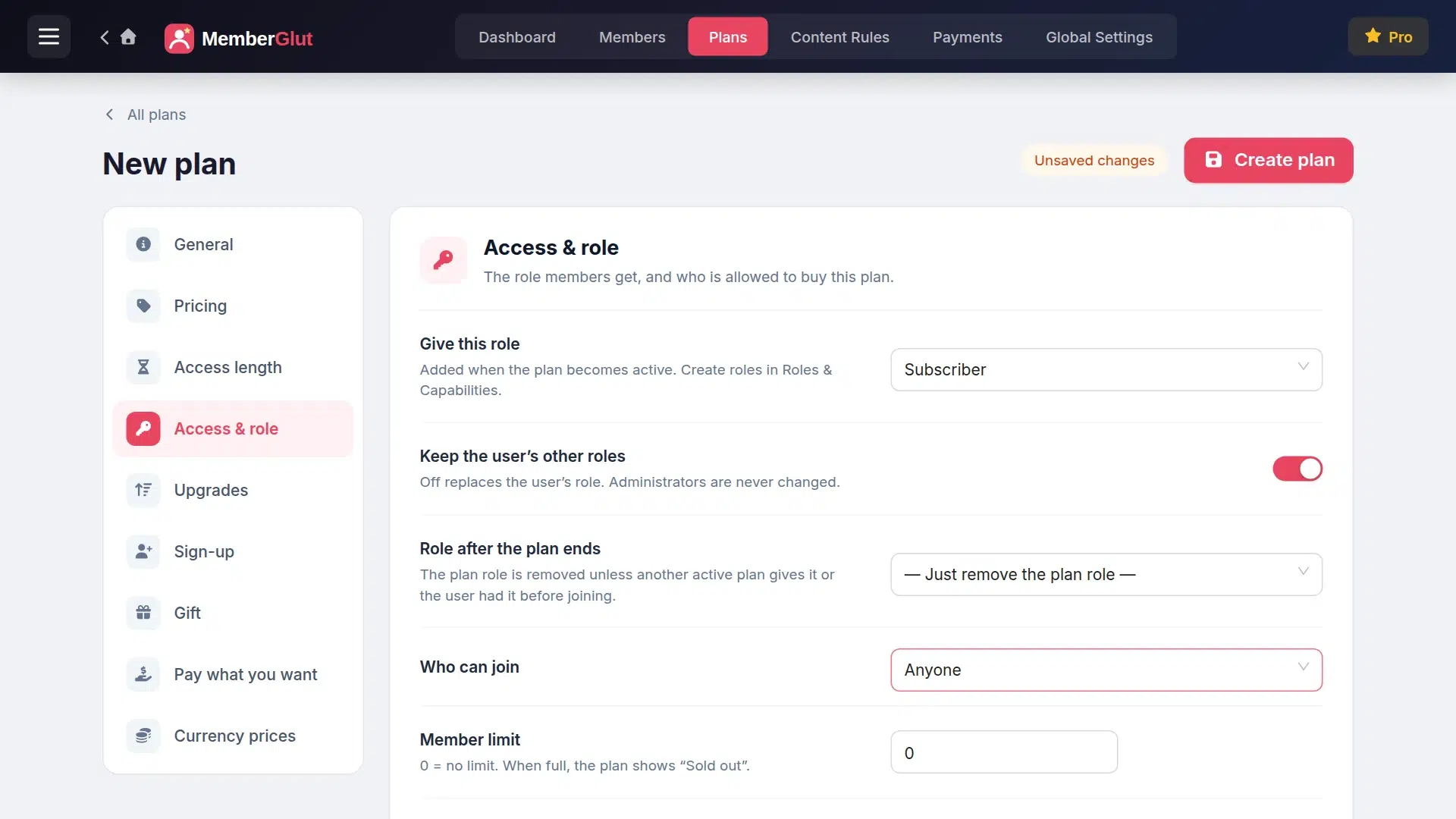
The Access & role tab sets the WordPress role members get while the plan is active, what happens to the role when it ends, who can join and an optional member limit. The defaults are fine for most sites. Access length lets you end access after a set time, for example a 12-month course.
Click Create plan. The new plan appears in the list and in the upgrade path. Make sure your free plan is Active too, if you want one.
Turn on a payment method
Paid plans need at least one way to pay. Go to MemberGlut → Global Settings → Payments:
- General: your currency and how prices are shown
- Stripe: cards, Apple Pay, Google Pay, Link and local payment methods, for one-time and recurring plans
- PayPal: PayPal balance and cards through PayPal
- Bank transfer: you confirm the payment by hand, good for invoices and local customers
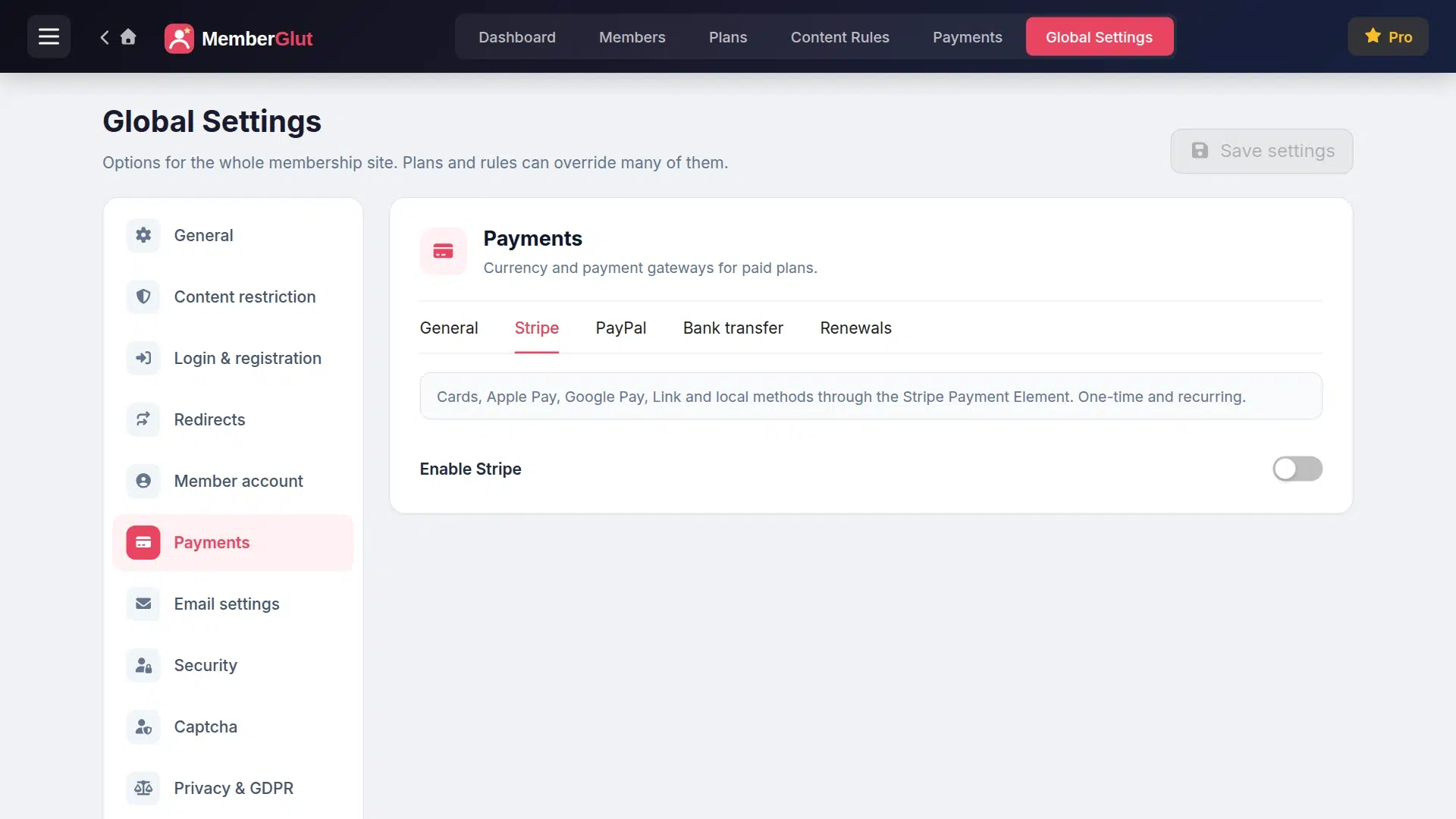
Turn on Test mode under General first and buy your own plan with a Stripe test card. When everything works, switch to live keys.
Seeing “No payment method is available for this plan yet”? That message appears on the registration page when a paid plan is chosen but no payment method is enabled. Turn on Stripe, PayPal or bank transfer and it goes away.
Protect your members-only content
Now decide what only members can see. Go to MemberGlut → Content Rules and click New rule. A rule has four parts, each in its own tab.
Name the rule
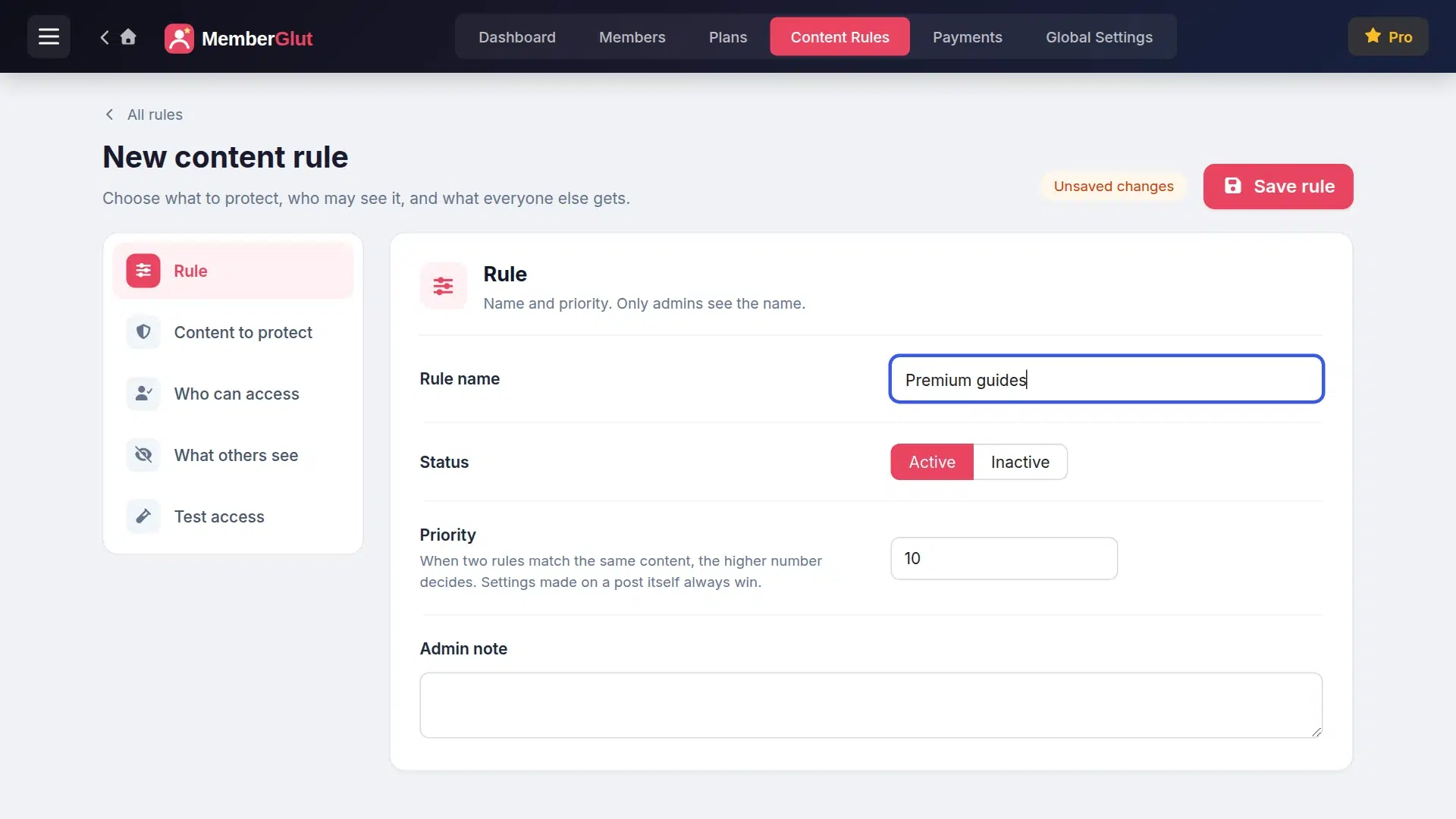
On the Rule tab, give it a name only you see, such as Premium guides. Leave the status Active. Priority only matters when two rules cover the same content.
Choose the content to protect
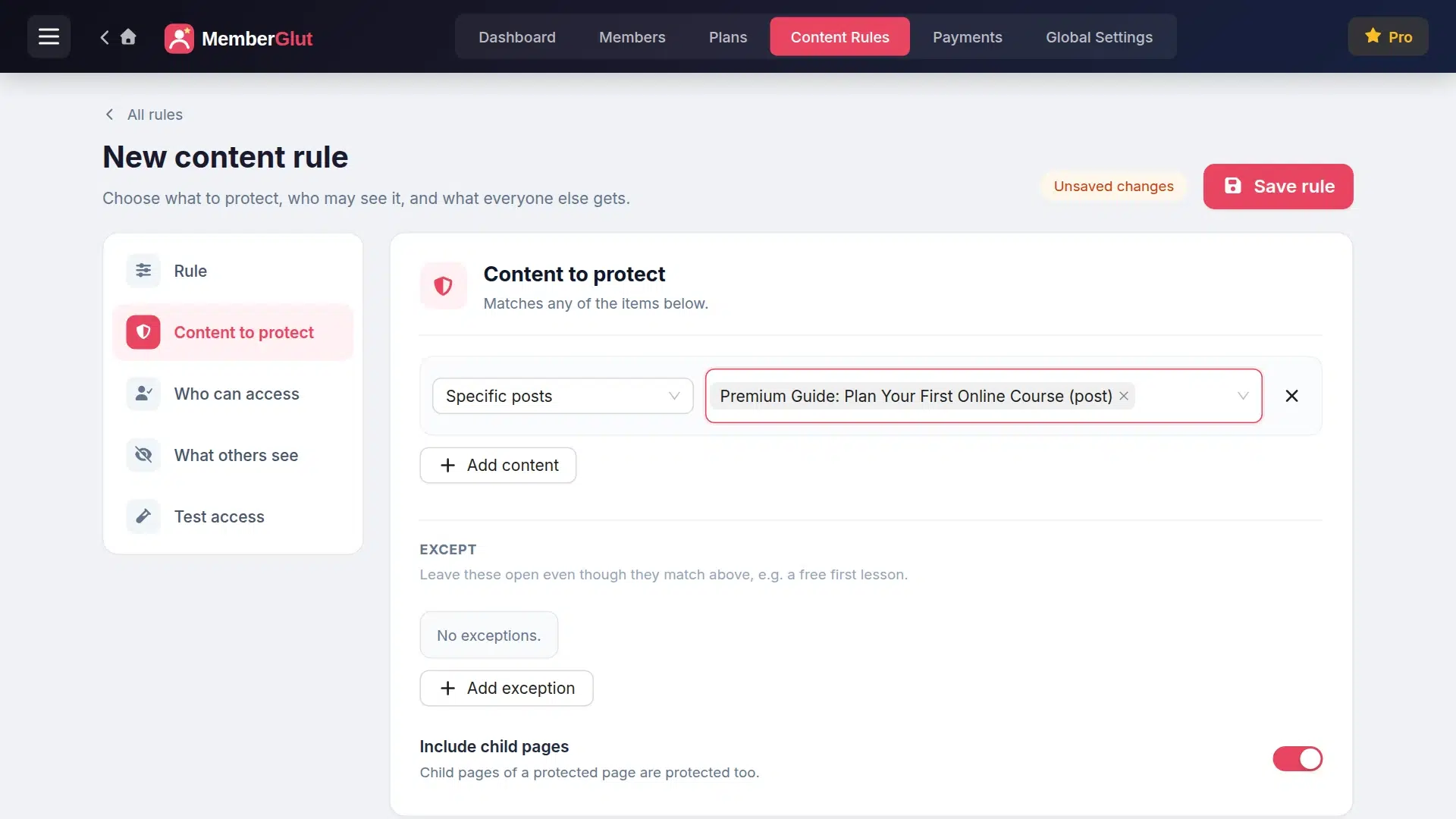
On Content to protect, pick what the rule covers. We chose Specific posts and searched for our guide. You can also protect all posts of a type, a category or tag, child pages, a page template, a URL pattern or the whole site. Use Add exception to keep something open, such as the first lesson of a course.
Choose who can see it
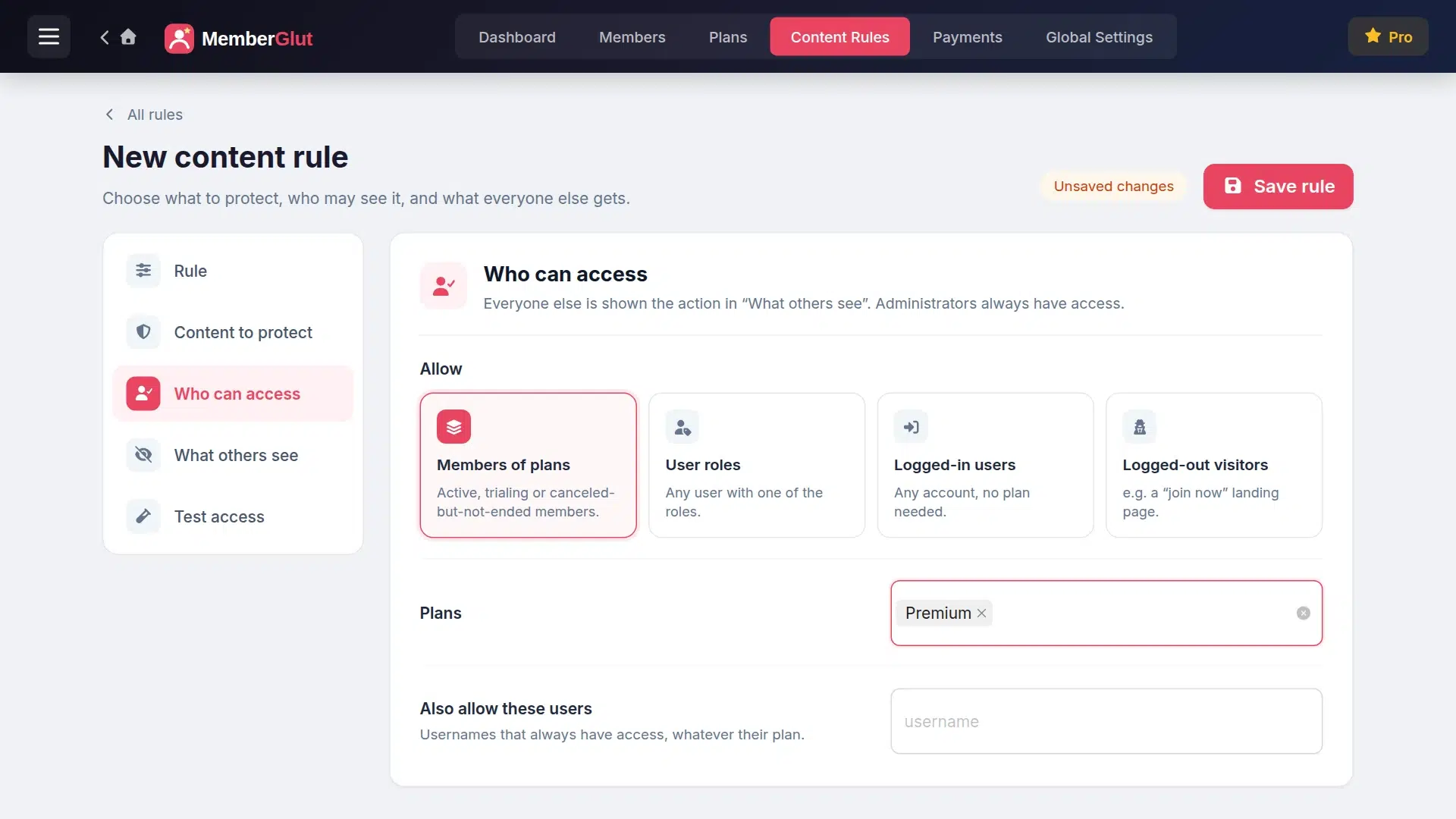
On Who can access, keep Members of plans and choose Premium. You could also allow certain user roles, any logged-in user, or only logged-out visitors (for a “join now” page). Administrators can always see everything.
Choose what everyone else sees
On What others see, choose what happens for visitors without access: show a message, show a login form, send them to the pricing page or redirect them. Show a message with a teaser works well: visitors read the start of the post and get a clear invitation to join.
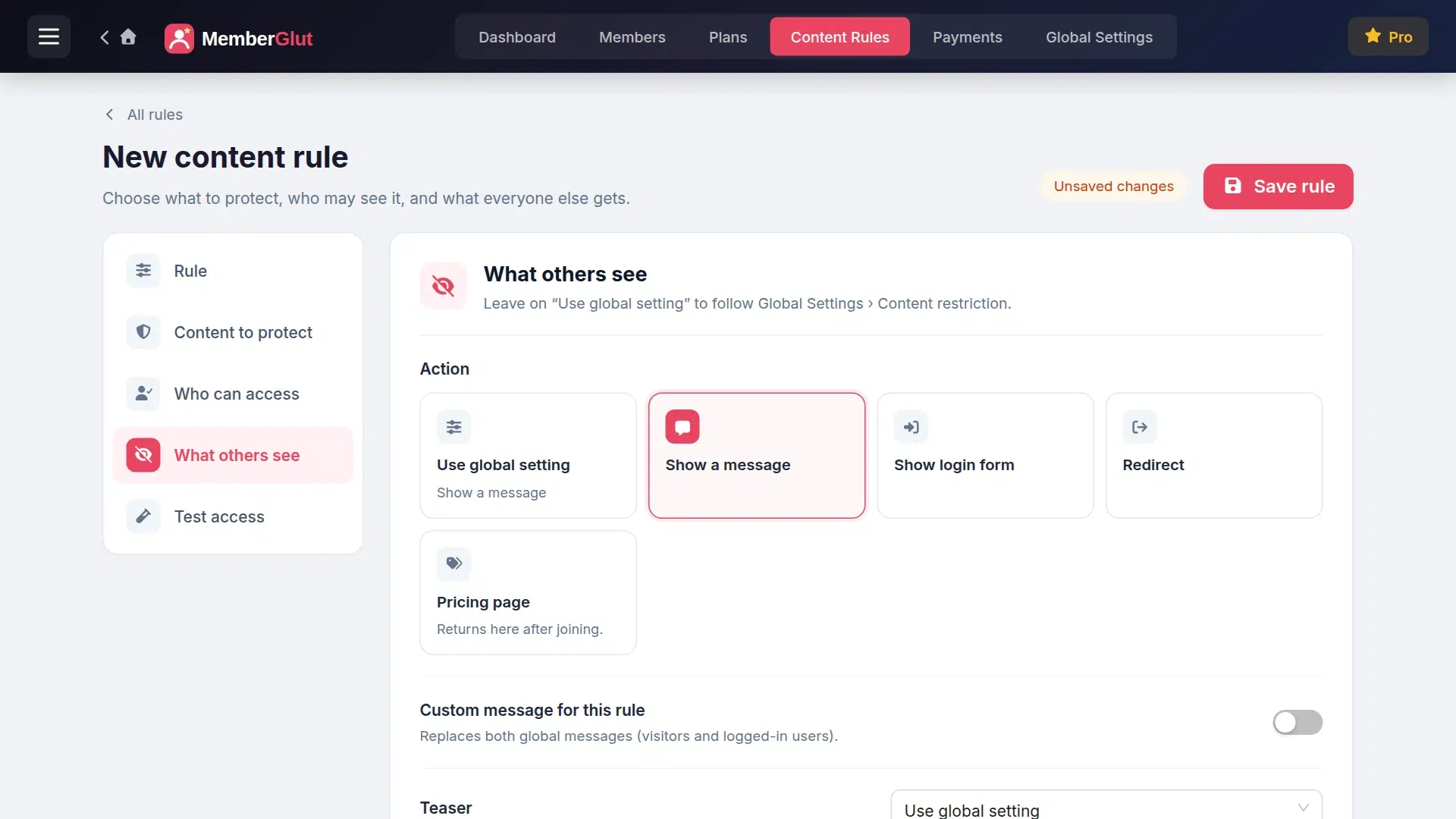
Click Save rule. The rule is live straight away.
Other ways to protect content: every block in the block editor has a Membership visibility panel, menu items can be shown only to certain plans, and the [memberglut_restrict] shortcode hides part of a post.
Check it as a visitor
Open your site in a private browser window so you’re logged out. First the Pricing page: it shows every active plan with its price, description and a Choose plan button.
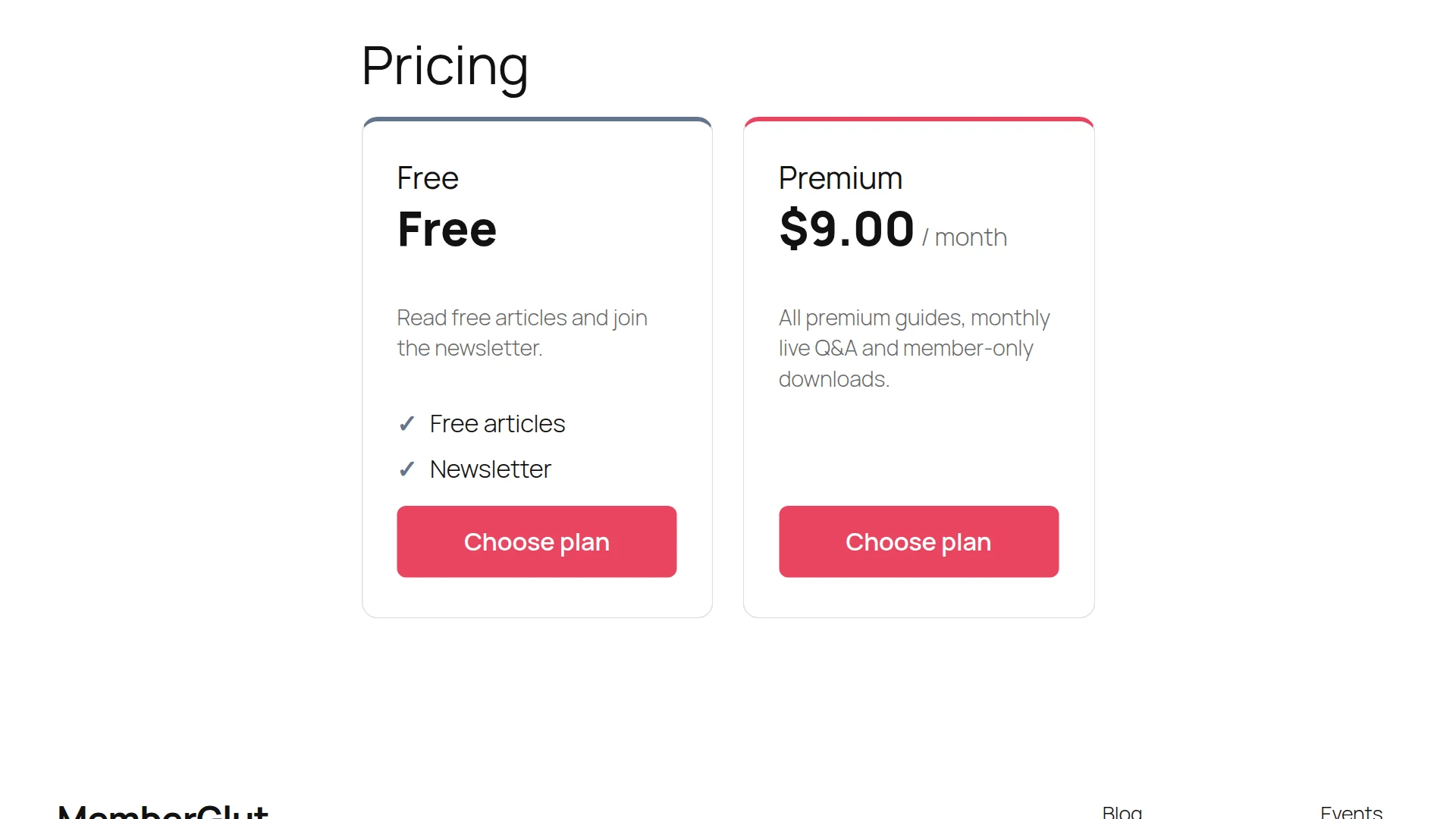
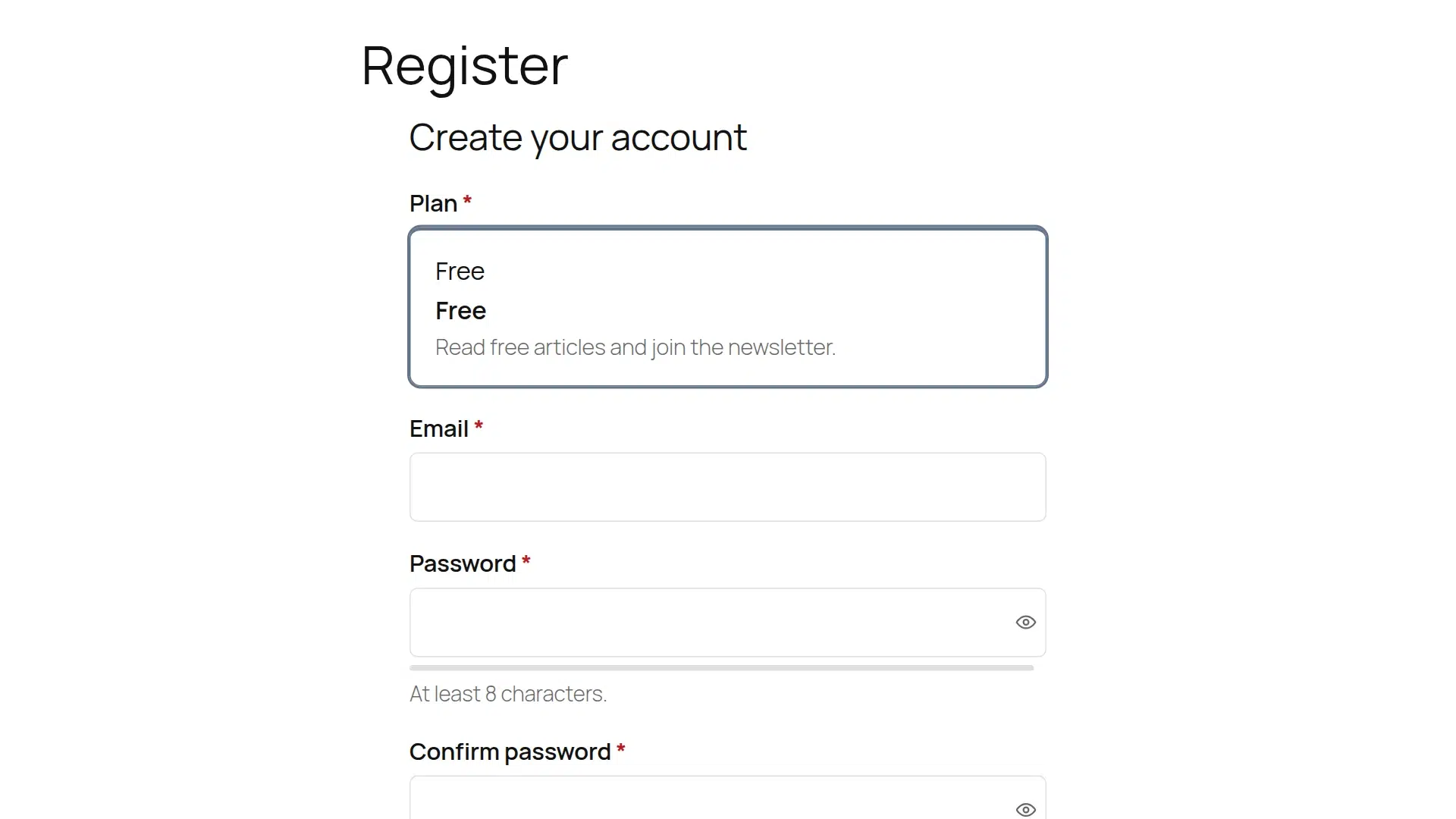
Choose plan opens the Register page with the plan already picked. For a paid plan, the payment form appears below the account fields.
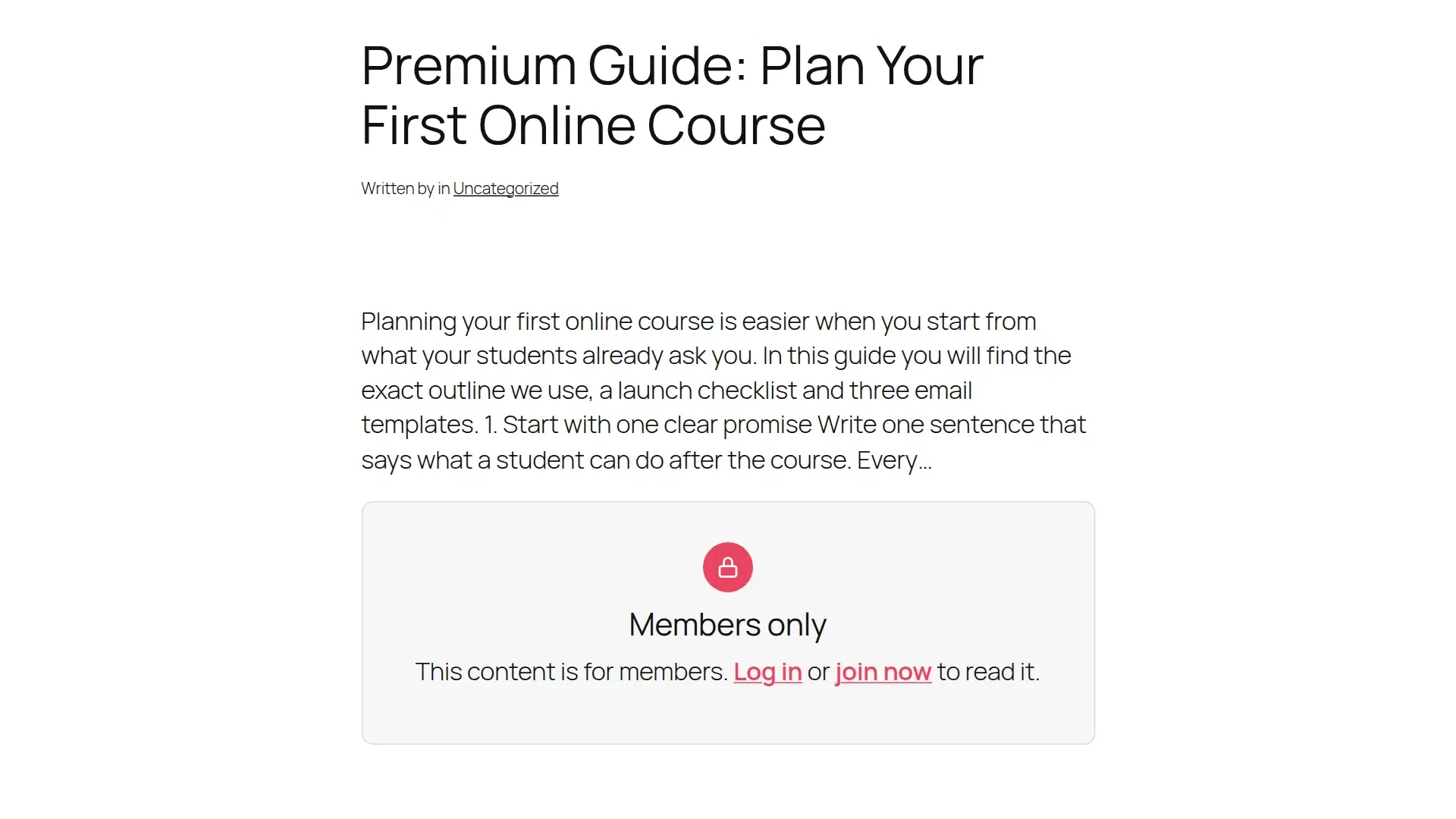
Finally, open a protected post. Visitors see the start of it and a Members only box with links to log in or join. Log in as a Premium member and the full post appears.
Manage your members
Every sign-up appears under MemberGlut → Members with the plan, status, payment method, start and end dates and total spent. Filter by status (active, trial, pending, on hold, canceled, expired), export the list, email members, or click Add member to give someone access yourself. Payments are listed under Payments.
Members manage their own profile, plan and payments on the My Account page, so you don’t have to.
Before you launch
- Test a real sign-up for each plan, in test mode, from a private window.
- Check the emails. MemberGlut emails members about approvals, payments, failed payments, renewal reminders and expiring plans. Review the text under MemberGlut → Emails and set up SMTP so they arrive.
- Add the pages to your menu: Pricing, Login and My Account.
- Keep some content public. Free articles bring visitors from Google; members-only content turns them into members.
- Turn on spam protection for registration under Global Settings → Captcha if you get fake sign-ups.
Frequently asked questions
Can I make a membership site in WordPress for free?
Yes. The free MemberGlut plugin includes membership plans, registration and login pages, a member account page, content rules and Stripe, PayPal and bank transfer payments. You only pay the payment provider’s normal fees.
What is the difference between a free plan and a paid plan?
A free plan lets people sign up without paying, which is a good way to collect members or email subscribers. A paid plan charges once or on a schedule (monthly, yearly) through Stripe, PayPal or bank transfer.
Can members pay every month?
Yes. On the plan’s Pricing tab choose Paid, then Recurring subscription, and set the price and how often to bill, for example every 1 month. Stripe and PayPal handle the renewals.
How do I show part of a post as a teaser?
In the content rule, open What others see. You can show a message with a short excerpt of the post, show a login form, send visitors to the pricing page or redirect them anywhere.
Can I protect a whole category or my whole site?
Yes. In Content to protect choose All of a post type, Posts in a category or tag, Child pages of, a URL pattern, or Whole site. For a members-only site you can also turn on Members-only site under Global Settings, General.
Can I add members myself?
Yes. Go to MemberGlut, Members and click Add member. Pick the user and the plan. This is useful for offline payments, team members or giving someone free access.
Keep going
Start your membership site today
MemberGlut is free on WordPress.org: plans, subscriptions, content rules, Stripe and PayPal, pricing tables and member accounts.
Written by the AppGlut team, the makers of MemberGlut. Every step was tested on 29 October 2026 with MemberGlut 2.0.0 and WordPress 7.1.